background image
Game Servers 380 7 Days to Die 4 Abiotic Factor 2 Aloft 2 alt:V 2 Americas Army Proving Grounds 2 Among Us 2 Archean 2 ARK Survival Ascended 6 ARK Survival Evolved 3 Arma 3 3 Arma Reforger 2 Aska 2 AssaultCube 2 Assetto Corsa 3 Astro Colony 2 Astroneer 2 Automobilista 2 2 Avorion 2 Banana Shooter 2 Barotrauma 3 BATTALION Legacy 2 BeamNG.drive (BeamMP) 2 Black Mesa 2 Brickadia 2 Call of Duty 2 Citadel: Forged with Fire 2 ClassiCube 2 Clone Hero 2 Colony Survival 2 Conan Exiles 4 Contagion 2 Core Keeper 2 Counter-Strike 2 3 Craftopia 2 CryoFall 2 CS2D 2 Cube 2: Sauerbraten 2 Cubic Odyssey 2 DayZ 4 DDNet 2 DDRaceNetwork 2 Dead Matter 2 Dont Starve Together 4 Eco 2 Empyrion Galactic Survival 2 Enshrouded 3 Escape from Tarkov 2 Euro Truck Simulator 2 2 Factorio 2 Farming Simulator 25 2 Fistful of Frags 2 FiveM 3 FortressCraft Evolved 2 Foundry 2 Foundry VTT 2 Frozen Flame 2 FTL Tachyon 2 Garrys Mod 3 Ground Branch 2 Half-Life 2 Deathmatch 2 Hogwarp 2 Holdfast: Nations at War 2 HumanitZ 2 Hurtworld 2 Hytale 1 Icarus 2 Insurgency Sandstorm 2 IOSoccer 2 Just Cause 3 Multiplayer 2 Kerbal Space Program 2 Killing Floor 2 3 LeagueSandbox 2 Left 4 Dead 2 Left 4 Dead 2 3 Longvinter 2 Los Angeles Crimes 2 Medal of Honor 2 Midnight Ghost Hunt 2 Mindustry 2 Minecraft 4 Minetest 2 Modiverse 2 Mordhau 3 Mount & Blade II: Bannerlord 2 Myth of Empires 2 Nazi Zombies Portable 2 Necesse 2 NeosVR 2 Neverwinter Nights EE 2 Night of the Dead 2 Nightingale 2 No Love Lost 2 No More Room in Hell 2 No One Survived 2 Nova-Life Amboise 2 Nuclear Option 2 Onset 2 Open Fortress 2 OpenArena 2 OpenRA 2 OpenRCT2 2 OpenTTD 2 Operation Harsh Doorstop 2 Palworld 3 Path of Titans 2 Pavlov VR 3 PixARK 2 Plains of Pain 2 Portal Knights 2 Post Scriptum 2 Project Zomboid 8 Puck 2 Quake Live 2 R5Reloaded 2 RedM 2 Renown 2 Resonite 2 Return to Moria 2 Rimworld Together 2 Rising World 2 Risk of Rain 2 1 Rust 4 Satisfactory 1 SCP Secret Laboratory 3 SCUM 2 Smalland 2 Solace Crafting 2 Soldat 2 Soldat 2 2 Sonic Robo Blast 2 2 Sons of the Forest 2 Soulmask 2 SourceCoop 2 Space Engineers 3 Space Station 14 2 Squad 3 Starbound 3 StarMade 2 Stationeers 2 Stormworks 2 Subnautica Nitrox 2 Sunkenland 2 SuperTuxKart 2 Sven Co-op 2 Swords 'n Magic and Stuff 2 Team Fortress 2 3 Teeworlds 2 Terraria 3 TerraTech Worlds 2 TF2 Classified 2 The Forest 3 The Front 2 The Isle 2 Tower Unite 2 Trackmania 2 Unturned 4 Urban Terror 2 V Rising 3 Valheim 3 VEIN 2 Veloren 2 Vintage Story 3 Voyagers of Nera 2 Wolfenstein: Enemy Territory 2 Wreckfest 2 Wurm Unlimited 2 Xonotic 2 Zandronum 2 Getting Started 2 Network & Connectivity 1 Server Management 2
קטגוריות

How to Find Your Server IP and Port

ip port gpanel address 0 מצאו את זה מועיל

Your server's IP address and port number are what you (and your players) use to connect. This guide shows you exactly where to find them in GPanel.

Prerequisites

  • An active game server with Legion Hosting
  • Your GPanel login credentials (check your welcome email if you have not logged in before)

Step 1 — Log In to GPanel

  1. Open your browser and go to https://gpanel.legionhosting.net.
  2. Enter your email address and password, then click Login.
  3. You will land on the server list. Click the name of the server you want to connect to.

Step 2 — Find the Address on the Console Page

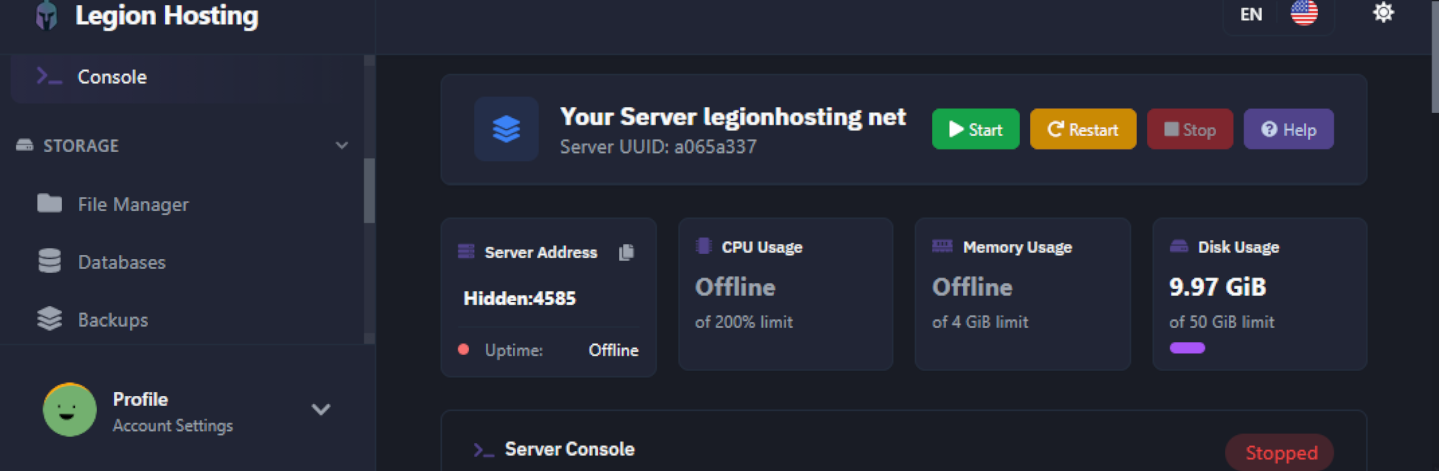
After clicking your server, GPanel opens the Console page by default. Your server address is displayed here without needing to navigate anywhere else.

  1. Look at the top of the Console page, directly below the server name.
  2. You will see the primary address in the format IP:Port, for example 192.0.2.10:25565. This is the main address your players use to connect.
  3. Below the primary address, you may also see a query port listed. This is a secondary port used by some games for server-browser listing (see the note below on when to use it).
console-address-highlight

Step 3 — Understand the IP:Port Format

The address uses a colon to separate two parts:

Part Example What It Means
IP Address 192.0.2.10 The network location of your server. This is shared by all services on the same machine.
Port 25565 The specific channel that belongs to your game server. Each server on the same machine has a unique port.
Important: You need both parts to connect. Entering only the IP address without the port will not work for most game servers.

Step 4 — Verify the Address in the Network Tab

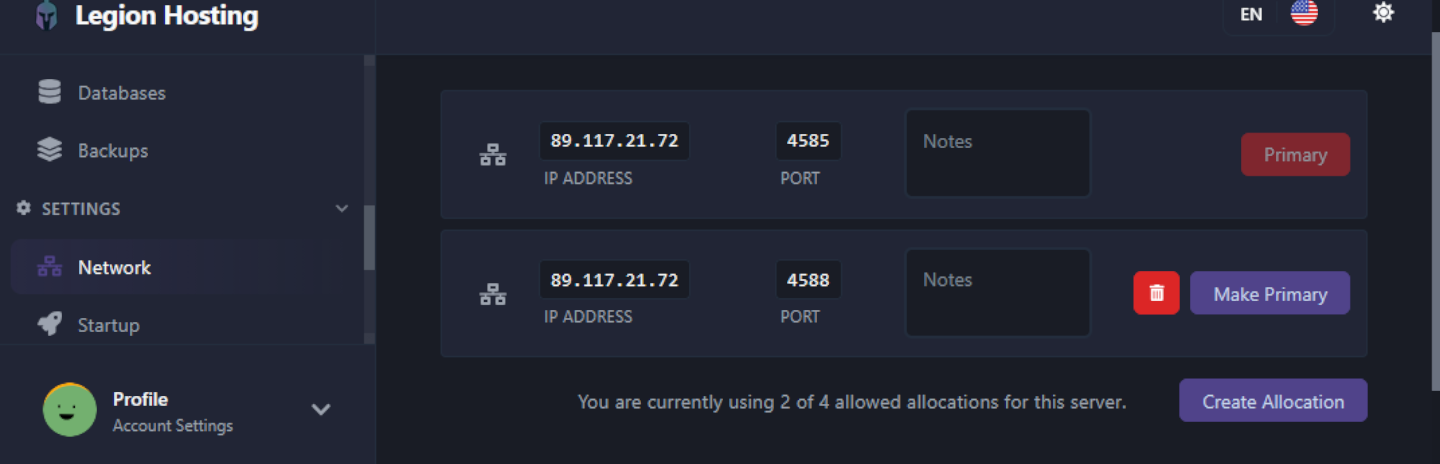
The Network tab lists every port allocated to your server. This is useful if your server uses more than one port (for example, a query port or RCON port).

  1. In the left sidebar of GPanel, click Network.
  2. A table lists each allocation. The row marked as Primary is the main connection address players use.
  3. Additional rows show secondary ports (such as query or voice ports) if your server type uses them.
network-tab-allocations
Steam servers and the query port: Some Steam-based games require players to connect using the query port rather than the primary port. If players cannot connect using the primary address, try giving them the query port instead (shown below the primary port on the Console tab, or in the Network tab). This is most common with games that use Steam's server browser for matchmaking.

Verification

Before sharing the address with players, confirm your server is actually running:

  1. Return to the Console tab.
  2. Check that the status indicator shows Running. If it shows Offline or Starting, wait until the server fully starts before attempting to connect.
  3. Try connecting yourself first using the IP:Port address to confirm it is working.

Troubleshooting

The address is not visible on the Console page

Refresh the page. If the address still does not appear, check the Network tab as described in Step 4. If no ports are listed at all, contact Legion Hosting support — your server may not have been allocated a port yet.

Players cannot connect using the address

Make sure your server status shows Running before sharing the address. A server that is still starting or has crashed will refuse connections even though the address is correct.
  • Confirm players are using the full IP:Port format, including the colon and port number.
  • Confirm there are no extra spaces before or after the address.
  • If you recently restarted the server, allow 1–2 minutes for it to finish loading before trying again.

The IP address changed

Legion Hosting assigns a fixed IP to your server. If the address appears different from what you expected, log in to GPanel and copy the address fresh from the Console page. Do not rely on addresses saved from older emails or screenshots.


האם המאמר הזה היה מועיל?

Ready to Get Started?

The servers are booted, select your plan and become our latest satisfied client.