Velkommen til Legion Hosting. Denne veiledningen tar deg gjennom alt du trenger å gjøre etter at du har kjøpt en spillserver — fra å logge inn i GPanel for første gang, til å starte serveren og invitere venner til å bli med.
Forutsetninger
- En Legion Hosting-konto (opprettet i kassen)
- Påloggingsinformasjonen din til GPanel — sjekk velkomst-e-posten din
- En moderne nettleser (Chrome, Firefox, Edge)
- Spillet du kjøpte serveren for, installert på PC-en din
Trinn 1: Logg inn i GPanel
GPanel er kontrollpanelet der du administrerer alle aspekter av spillserveren din.
- Åpne nettleseren din og gå til https://gpanel.legionhosting.net.
- Skriv inn E-post og Passord fra velkomst-e-posten din.
- Klikk på Login.
- Du havner på serverlisten. Klikk på serverens navn for å åpne den.
Trinn 2: Start serveren din
Nye servere starter ikke automatisk. Du må slå dem på for første gang.
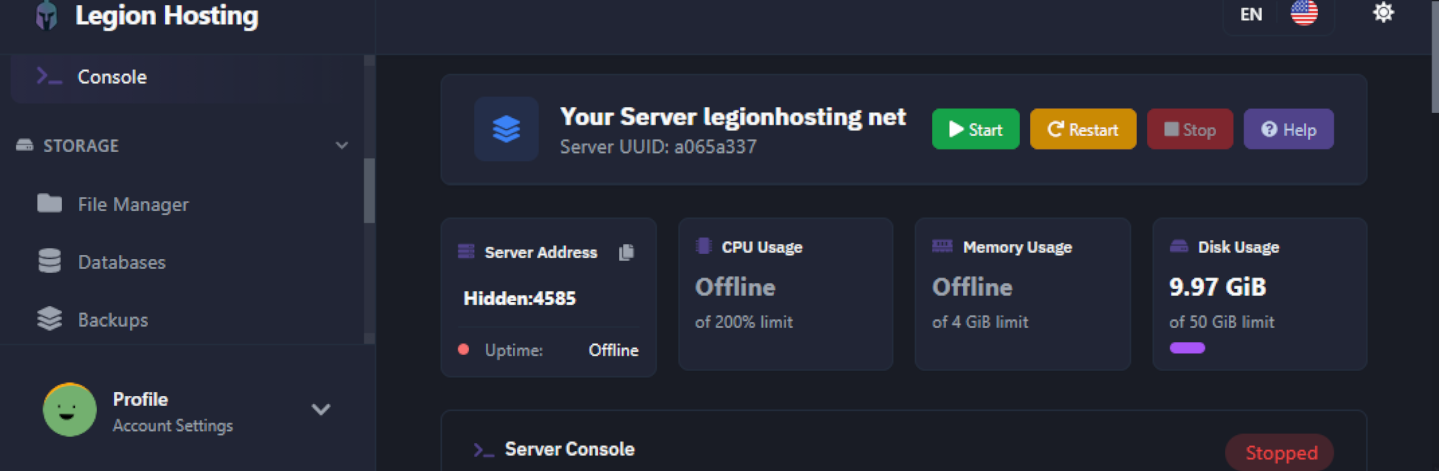
- Fra serveroversikten, se på fanen Console — denne vises som standard når du åpner serveren din.
- Sjekk statusindikatoren øverst til høyre i konsollpanelet. Den vil vise Offline.
- Klikk på Start-knappen (grønt avspillingsikon).
- Følg med på konsollutdataene. Serveren laster ned eventuelle nødvendige filer ved første oppstart — dette kan ta 2 til 10 minutter avhengig av spillet.
- Når serveren er klar, endres statusen til Running og du vil se en klar-melding i konsollen.
Trinn 3: Finn tilkoblingsdetaljene dine
Serverens IP-adresse og port finner du på oversiktssiden i GPanel.
- Klikk på fanen Overview (eller se øverst på konsollsiden).
- Noter deg IP Address og Port — disse deler du med venner slik at de kan koble til.
Trinn 4: Grunnleggende konfigurasjon
De fleste servere lar deg endre vanlige innstillinger — som servernavn, passord og spillergrense — direkte inne i GPanel uten å redigere konfigurasjonsfiler manuelt.
Bruke Startup-fanen
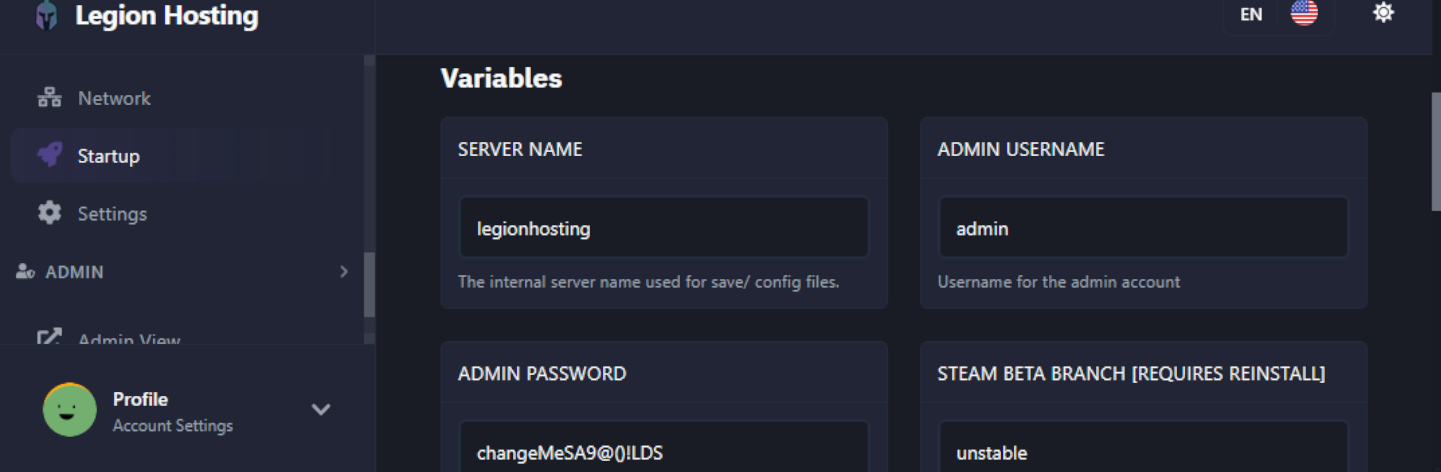
- Klikk på fanen Startup i GPanel.
- Du vil se en liste over variabler som styrer serverens grunnleggende oppførsel.
- Vanlige variabler er listet opp nedenfor. Rediger verdien og trykk Enter eller klikk på Save — endringene trer i kraft ved neste omstart av serveren.
Vanlige innstillinger
| Innstilling | Hva den gjør | Eksempelverdi |
|---|---|---|
| Server Name | Navnet som vises i spillets serverliste | My Legion Server |
| Server Password | Krever at spillere skriver inn et passord for å bli med. La feltet stå tomt for en offentlig server. | MySecret123 |
| Max Players | Maksimalt antall spillere som kan være online samtidig | 16 |
| Admin Password | Passord som brukes til å gi deg selv admin-/operatørstatus i spillet | AdminPass456 |
Trinn 5: Bruke filbehandleren
Filbehandleren gir deg nettleserbasert tilgang til alle serverfilene dine — nyttig for å redigere konfigurasjonsfiler, laste opp kart eller fjerne uønsket innhold.
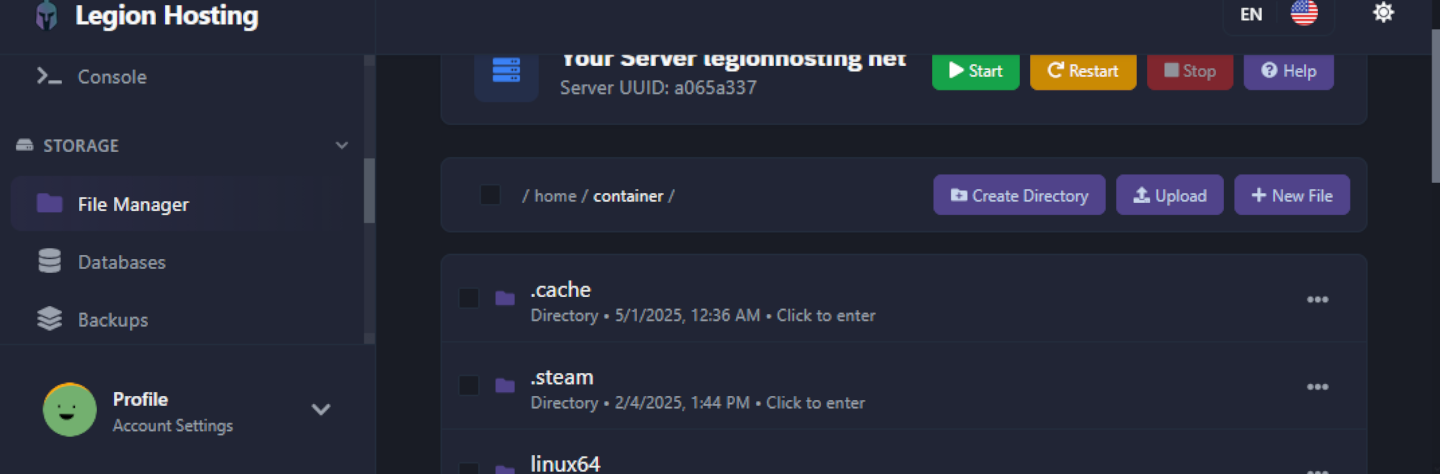
- Klikk på fanen Files i GPanel.
- Du vil se en mappeliste over serverens rotmappe.
- For å redigere en fil: klikk på filnavnet. En innebygd teksteditor åpnes i nettleseren din. Gjør endringene dine og klikk på Save Content.
- For å laste opp en fil: klikk på Upload (øverst til høyre), og dra og slipp deretter filer eller klikk for å bla gjennom. Store filer kan ta litt tid.
- For å opprette en mappe: klikk på New Directory, skriv inn et navn, og klikk på Create.
- For å slette en fil eller mappe: kryss av i boksen ved siden av den og klikk på Delete. Sletting er permanent.
Trinn 6: Bekreft at serveren din fungerer
Før du deler serverdetaljene dine med andre, bekreft at den er tilgjengelig.
- Sørg for at serverstatusen viser Running i GPanel.
- Start spillet ditt og naviger til alternativet for flerspiller / direkte tilkobling.
- Skriv inn serverens IP-adresse og port fra Trinn 3.
- Hvis du blir bedt om det, skriv inn serverpassordet du satte i Trinn 4.
- Du skal koble til uten problemer og se verdenen laste inn.
Feilsøking
Hvis noe ikke fungerer, gå gjennom sjekklisten nedenfor før du oppretter en supporthenvendelse.
| Problem | Hva du bør sjekke |
|---|---|
| Får ikke logget inn i GPanel | Bruk lenken Forgot Password på påloggingssiden. Sjekk velkomst-e-posten din for riktig adresse. Sjekk søppelpostmappen din hvis du ikke mottar e-posten for tilbakestilling. |
| Serveren vil ikke starte / forblir Offline | Les konsollutdataene for feilmeldinger. Den første installasjonen kan ta opptil 10 minutter. Hvis det dukker opp feil, kopier dem og opprett en supporthenvendelse. |
| Får ikke koblet til serveren | Bekreft at serveren kjører. Dobbeltsjekk IP og port. Sørg for at du bruker spillets funksjon for direkte tilkobling, ikke serverlisten. Se Finne serverens IP & port. |
| Innstillingsendringer trer ikke i kraft | Endringer av Startup-variabler krever en omstart av serveren. Bruk Restart-knappen etter lagring. |
| Filopplasting mislykkes eller får tidsavbrudd | For filer større enn noen hundre MB, bruk SFTP i stedet for den nettleserbaserte filbehandleren. |
| Konsollen viser feil ved oppstart | Kopier hele feilteksten og søk i denne kunnskapsbasen. Hvis du ikke finner svar, opprett en supporthenvendelse med feilen inkludert. |
Hvor du kan få hjelp
Kunnskapsbase
Bla gjennom veiledninger for vanlige oppgaver, spillspesifikt oppsett og feilsøking på legionhosting.net/kb/.
Supporthenvendelse
Opprett en henvendelse gjennom kundeområdet ditt for konto- eller tekniske problemer. Inkluder servernavnet ditt og eventuelle feilmeldinger.
Discord
Bli med i Legion Hosting Discord for hjelp fra fellesskapet og raskere svar på korte spørsmål.

