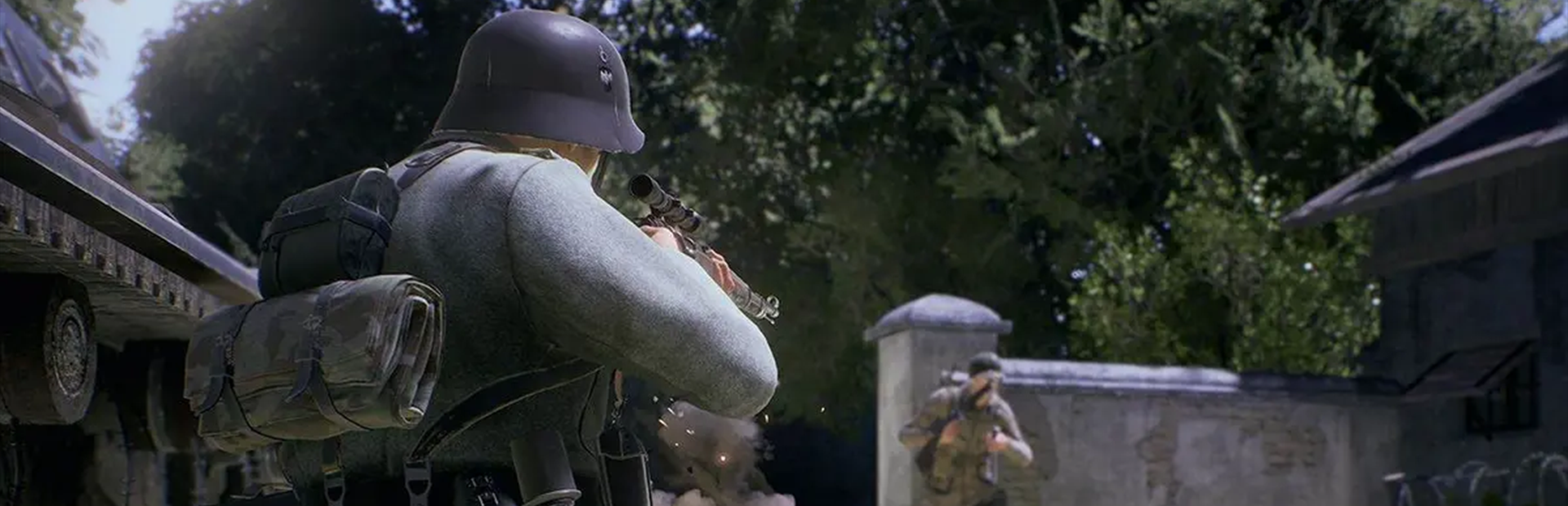
Bu kılavuz, Dead Matter adanmış sunucunuzu Legion Hosting üzerinde nasıl kuracağınızı, başlangıç değişkenlerini nasıl yapılandıracağınızı, sunucu yapılandırmasını nasıl düzenleyeceğinizi, dünya ve zorluk seçeneklerini nasıl ayarlayacağınızı, sunucunuza nasıl bağlanacağınızı ve kayıtları nasıl yöneteceğinizi kapsar. Dead Matter, Alberta, Kanada'da geçen, üs inşası, yağmalama, üretim ve hem PvP hem de PvE oynanışı içeren açık dünya bir zombi hayatta kalma oyunudur. Yönetici komutları, oyuncu yönetimi ve sorun giderme için Dead Matter Yönetici Komutları sayfasına bakın.
1. İlk Başlatma
- GPanel'e giriş yapın ve Dead Matter sunucunuzu seçin.
- Startup sekmesine gidin ve yapılandırılabilir değişkenleri gözden geçirin (Bölüm 2'deki tabloya bakın).
- SERVER_NAME değerini sunucunuz için bir ada ayarlayın.
- Erişimi kısıtlamak istiyorsanız SERVER_PASSWORD değerini ayarlayın. Genel bir sunucu için boş bırakın.
- MAX_PLAYERS değerini istediğiniz oyuncu limitine ayarlayın.
- Console sekmesine dönün ve Start'a tıklayın.
- Konsolun sunucunun başladığını doğrulamasını bekleyin. İlk başlatma, sunucu dünyayı yükleyip yapılandırma dosyalarını oluşturdukça birkaç dakika sürebilir.
2. GPanel Başlangıç Değişkenleri
Aşağıdaki değişkenler GPanel Startup sekmesinde mevcuttur. Bunlar her başlatmada sunucuya iletilir.
| Değişken | Gerekli | Açıklama |
|---|---|---|
SERVER_NAME |
Evet | Sunucu tarayıcısında görüntülenen ad. |
SERVER_PASSWORD |
Hayır | Oyuncuların katılmak için girmesi gereken isteğe bağlı şifre. Genel erişim için boş bırakın. |
MAX_PLAYERS |
Hayır | Maksimum eş zamanlı oyuncu sayısı. |
PVP_ENABLED |
Hayır | PvP savaşını etkinleştirir veya devre dışı bırakır. true veya false olarak ayarlayın. |
DIFFICULTY |
Hayır | Zombi yoğunluğunu, ganimet kıtlığını ve hayatta kalma zorluğunu etkileyen sunucu zorluk ayarı. |
3. Sunucu Yapılandırması
Başlangıç değişkenlerinin ötesindeki gelişmiş ayarlar için, sunucu yapılandırma dosyasını doğrudan düzenleyebilirsiniz. Değişiklik yapmadan önce sunucunuzu durdurun.
Dosya Konumu
DeadMatter/Saved/Config/WindowsServer/Game.iniBu dosyayı GPanel'deki Files sekmesini kullanarak açın veya SFTP ile bağlanın. Dosya, bölümler ve anahtar-değer çiftleri içeren bir INI formatı kullanır. Dosya mevcut değilse, oluşturmak için sunucuyu bir kez başlatıp durdurun.
Önemli Ayarlar
| Ayar | Varsayılan | Açıklama |
|---|---|---|
ServerName |
Dead Matter Server |
Sunucu tarayıcısında oyunculara görüntülenen sunucu adı. |
ServerPassword |
(boş) | Katılmak için gereken şifre. Boş, genel erişim anlamına gelir. |
MaxPlayers |
36 |
Sunucuda izin verilen maksimum eş zamanlı oyuncu sayısı. |
bPvPEnabled |
true |
Oyuncuların birbirine hasar verip veremeyeceği. Yalnızca PvE için false olarak ayarlayın. |
ZombieDensity |
1.0 |
Zombi oluşma yoğunluğu için çarpan. Daha yüksek değerler daha fazla zombi anlamına gelir. Aralık: 0.1 ila 3.0. |
LootRespawnTime |
3600 |
Yağmalanan konteynerlerin içeriklerini yeniden oluşturmasından önce geçen saniye cinsinden süre. |
DayNightCycleSpeed |
1.0 |
Gündüz/gece döngüsü için hız çarpanı. Daha yüksek değerler günleri kısaltır. |
AutoSaveInterval |
300 |
Saniye cinsinden otomatik kayıt aralığı. Varsayılan olarak her 5 dakikada bir. |
Örnek Yapılandırma
[ServerSettings]
ServerName=My Legion Dead Matter
ServerPassword=
MaxPlayers=36
bPvPEnabled=true
ZombieDensity=1.5
LootRespawnTime=3600
DayNightCycleSpeed=1.0
AutoSaveInterval=3004. Dünya Ayarları ve Zorluk
Dead Matter, Alberta, Kanada'nın açık dünya haritasında geçer. Sunucu ayarları, hayatta kalma deneyimini özelleştirmenize olanak tanır.
PvP ve PvE Karşılaştırması
- PvP (varsayılan) -- Oyuncular birbirine saldırabilir, öldürebilir ve yağmalayabilir. Üsler basılabilir. Tam hayatta kalma PvP deneyimi.
- PvE -- Oyuncudan oyuncuya hasar devre dışı bırakılır. Oyuncular zombi tehdidine ve çevreye karşı iş birliği yapar.
bPvPEnabled=falseolarak ayarlayın.
Zombi ve Zorluk Ayarları
- ZombieDensity -- Dünyada kaç zombinin oluşacağını kontrol eder. Daha az zombi (daha kolay) için
0.5, zorlu ve zombilerle dolu bir deneyim için2.0+olarak ayarlayın. - LootRespawnTime -- Yağmalanan konteynerlerin ne kadar hızlı yeniden dolacağını kontrol eder. Daha düşük değerler daha hızlı ganimet döngüsü (daha kolay yağmalama) anlamına gelir. Daha yüksek değerler oyuncuları daha fazla keşfetmeye zorlar.
- DayNightCycleSpeed -- Gündüz/gece döngüsünün temposunu ayarlar. Daha uzun günler daha fazla güvenli yağmalama süresi sağlar. Daha hızlı döngüler gece çökmesinin aciliyetini artırır.
Dünya Kalıcılığı
Dead Matter dünyaları kalıcıdır -- oyuncu üsleri, araçlar, zulalar ve dünya değişiklikleri oturumlar arasında kalır. Sunucu, bu durumu korumak için periyodik olarak otomatik kayıt yapar.
5. Nasıl Bağlanılır
Seçenek A -- Oyun İçi Sunucu Tarayıcısı
- Dead Matter'ı başlatın.
- Ana menüden Multiplayer seçeneğini seçin.
- Sunucu listesine göz atın ve sunucunuzu adına göre arayın.
- Sunucunuzu seçin ve Join'e tıklayın. Bir şifre ayarlanmışsa girin.
Seçenek B -- Doğrudan Bağlantı
- Dead Matter'ı başlatın.
- Ana menüden Multiplayer seçeneğini seçin.
- Direct Connect seçeneğini seçin.
- GPanel'in Network sekmesinden sunucunuzun IP adresini ve bağlantı noktasını girin:
<your-server-ip>:<port> - İstenirse sunucu şifresini girin ve Connect'e tıklayın.
6. Kayıt Yönetimi
Otomatik Kayıt
Sunucu, yapılandırmada belirtilen aralıkta otomatik kayıt yapar (varsayılan: her 300 saniye / 5 dakikada bir). Kayıtlar, oynanış üzerinde önemli bir etki olmadan arka planda gerçekleşir.
Kayıt Dosyası Konumu
DeadMatter/Saved/SaveGames/Bu dizin, oyuncu üsleri, araç konumları, ganimet konteynerleri, zombi durumları ve oyuncu envanterleri dahil olmak üzere tam dünya durumunu içerir.
SFTP ile Manuel Yedeklemeler
- Tüm verilerin diske yazıldığından emin olmak için GPanel'den sunucuyu durdurun.
- SFTP ile sunucunuza bağlanın. Talimatlar için SFTP ile Dosyalar Nasıl Yüklenir sayfasına bakın.
- Tüm
SaveGames/dizinini indirin. - Yedeği bilgisayarınızda güvenli bir konumda saklayın.
Bir Kaydı Geri Yükleme
- GPanel'den sunucuyu durdurun.
- SFTP ile bağlanın ve
SaveGames/dizinine gidin. - Yedeklenen kayıt dosyalarınızı yükleyin ve mevcut olanların yerine koyun.
- GPanel'den sunucuyu başlatın. Sunucu geri yüklenen kaydı yükleyecektir.
İlgili Makaleler
- Dead Matter Yönetici Komutları
- Sunucu IP ve Bağlantı Noktanızı Nasıl Bulursunuz
- SFTP ile Dosyalar Nasıl Yüklenir
- Sunucu Başlatma Kılavuzu
Yardıma mı İhtiyacınız Var?
Dead Matter sunucunuzla burada ele alınmayan sorunlarla karşılaşırsanız, bir destek talebi açın ve sunucu IP'nizi, sorunun bir açıklamasını ve GPanel konsolundan ilgili tüm hata mesajlarını ekleyin.

