Bu kılavuz, Legion Hosting ile barındırılan Project Zomboid sunucunuzu nasıl yapılandıracağınızı kapsar — GPanel aracılığıyla sunucu ayarları dosyası ve sandbox değişkenleri dahil.
Yapılandırma Dosyalarına Genel Bakış
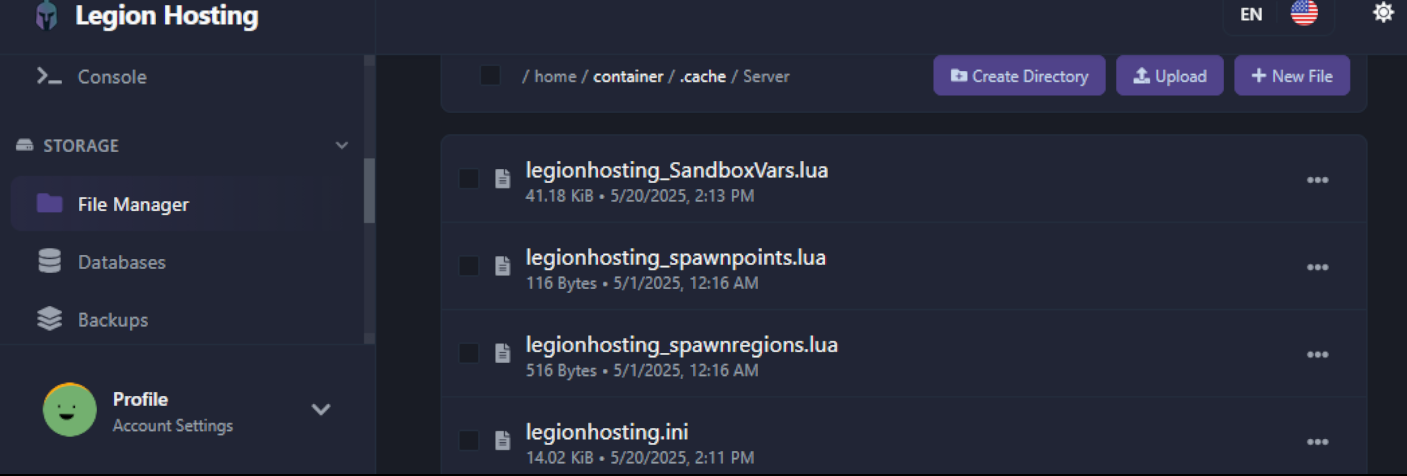
Project Zomboid, sunucu yapılandırmasını sunucunuzdaki /.cache/server/ dizininde iki dosyada saklar. Her iki dosya da dosya adının bir parçası olarak sunucunuzun adını kullanır.
| Dosya | Amaç |
|---|---|
/.cache/server/servername.ini |
Temel sunucu ayarları — parola, oyuncu yuvaları, portlar, PvP, sesli sohbet ve daha fazlası |
/.cache/server/servername_SandboxVars.lua |
Oyun ve dünya ayarları — zombi nüfusu, ganimet bolluğu, hız, yeniden doğma oranları |
servertest'tir. Emin değilseniz, GPanel Başlangıç sekmesini kontrol edin — bu, Sunucu Adı alanındaki değerdir.
Adım 1 — GPanel'de Dosya Yöneticisini Açın
- GPanel'e giriş yapın.
- Sunucu listesinden Project Zomboid sunucunuza tıklayın.
- Konsol sekmesinde, sunucu çalışıyorsa Durdur'a tıklayın. Devam etmeden önce durumun Çevrimdışı olarak değişmesini bekleyin.
- Dosya yöneticisini açmak için Dosyalar sekmesine tıklayın.
.cache/server/dizinine gidin..cacheklasörü görünür değilse Gizli Dosyaları Göster düğmesine tıklamanız veya gizli dosya görünürlüğünü açmanız gerekebilir — bir nokta ile başlar.
Adım 2 — Sunucu Ayarları Dosyasını (.ini) Düzenleyin
.ini dosyası, temel sunucu yapılandırmasını kontrol eder. Satır içi düzenleyicide açmak için dosyaya tıklayın.
Yaygın Olarak Değiştirilen Ayarlar
| Ayar | Açıklama | Örnek Değer |
|---|---|---|
PublicName |
Genel sunucu tarayıcısında gösterilen sunucu adı | My PZ Server |
PublicDescription |
Sunucu tarayıcısında gösterilen kısa açıklama | Welcome! Friendly server. |
Password |
Oyuncuların katılmak için girmesi gereken parola. Parola olmaması için boş bırakın. | hunter2 |
MaxPlayers |
Eşzamanlı maksimum oyuncu sayısı | 16 |
PVP |
Oyuncuya karşı oyuncu savaşını etkinleştirin veya devre dışı bırakın | true veya false |
Public |
Sunucunun genel sunucu listesinde görünüp görünmeyeceği | true veya false |
DefaultPort |
Sunucunun dinlediği UDP portu (varsayılan 16261). Bunu GPanel'in atadığı portla eşleştirin. | 16261 |
Map |
Harita adı. Varsayılan harita için Muldraugh, KY kullanın. Mod haritalarını noktalı virgülle ayırarak ekleyin. |
Muldraugh, KY |
Mods |
Noktalı virgülle ayrılmış Mod ID listesi. B41 formatı: modid1;modid2. B42 formatı: \modid1;\modid2; |
2392509783;2400857388 |
WorkshopItems |
Noktalı virgülle ayrılmış Workshop öğe ID'leri (Mods listesiyle eşleşmelidir) |
2392509783;2400857388 |
Mods altında listelenen her mod ID'sinin WorkshopItems altında eşleşen bir girişi olmalıdır. Bir uyuşmazlık, mod ekledikten sonra sunucu başlatma hatalarının yaygın bir nedenidir.
Değişikliklerinizi yaptıktan sonra, dosya düzenleyicisinde Kaydet'e tıklayın. Sandbox değişkenlerini de düzenlemek istiyorsanız sunucuyu henüz başlatmayın — önce Adım 3'ü tamamlayın.
Adım 3 — Sandbox Değişkenleri (Oyun Ayarları)
Sandbox değişkenleri, oyun deneyimini kontrol eder: kaç zombinin oluşacağı, ne kadar hızlı hareket edecekleri, ganimet nadirliği ve düzinelerce diğer dünya parametresi. Bunlar, aynı /.cache/server/ dizinindeki servername_SandboxVars.lua dosyasında bulunur.
SandboxVars Dosyasını Doğrudan Düzenleme
Dosyayı düzenlemeyi tercih ederseniz, format bir Lua tablosudur. Her ayar kendi satırındadır:
SandboxVars = {
    Zombies = 3,          -- Population: 1=Insane, 2=Very High, 3=High, 4=Normal, 5=Low
    Distribution = 2,     -- Zombie distribution: 1=Urban focused, 2=Uniform
    ZombieSpeedType = 3,  -- Speed: 1=Sprinters, 2=Fast Shamblers, 3=Shamblers, 4=Crawlers
    LootAbundance = 3,    -- Loot: 1=Insane, 2=Abundant, 3=Normal, 4=Scarce, 5=Very Scarce
    DayLength = 2,        -- In-game day length in hours: 1=1h, 2=2h ... 15=15h, 16=Real Time
    StartYear = 1,        -- Starting year (offsets from 1993)
    StartMonth = 7,       -- Starting month (1–12)
    StartDay = 9,         -- Starting day (1–31)
    WaterShut = 0,        -- Tap water shutoff: 0=Never, 1=Instant ... 14=2 years
    ElecShut = 0,         -- Electricity shutoff: 0=Never, 1=Instant ... 14=2 years
    HoursForCorpseRemoval = 0,  -- 0=Never auto-remove
    CharacterFreePoints = 0,    -- Bonus starting trait points
}Sorun Giderme
.ini dosyasındaki değişikliklerim kaydedilmedi
- En olası neden, dosyayı kaydettiğinizde sunucunun hâlâ çalışıyor olmasıdır. Project Zomboid, kapatma sırasında yapılandırmanın üzerine yazar. Önce sunucuyu durdurun, dosyayı düzenleyin, kaydedin, ardından sunucuyu başlatın.
- Başka bir yere geçmeden önce dosyayı GPanel'in düzenleyicisinde kaydettiğinizden emin olun — bir onay bildirimi arayın veya dosyanın son değiştirilme zaman damgasının güncellenip güncellenmediğini kontrol edin.
Dosya yöneticisinde .cache klasörünü göremiyorum
- Gizli dizinler (bir nokta ile başlayanlar) varsayılan olarak gösterilmez. GPanel Dosyalar sekmesinde bir Gizli Dosyaları Göster düğmesi veya onay kutusu arayın ve etkinleştirin.
- Dizin hiç yoksa, sunucu henüz çalışmamıştır. Yapılandırma dosyalarını oluşturmak için sunucuyu bir kez başlatıp durdurun, ardından bunları düzenleyin.
Sandbox ayarları canlı dünyada değişmiyor
_SandboxVars.luadosyasındaki değişiklikler yalnızca yeni bir dünyada etkili olur. Mevcut çalışan bir dünya için, silme işlemi olmadan ayarları düzenlemek için oyun içi yönetici panelinin Options (Seçenekler) sekmesini kullanın.

