
Denne guide dækker, hvordan du konfigurerer din Project Zomboid server hostet med Legion Hosting — herunder serverindstillingsfilen og sandbox-variabler via GPanel.
Oversigt over konfigurationsfiler
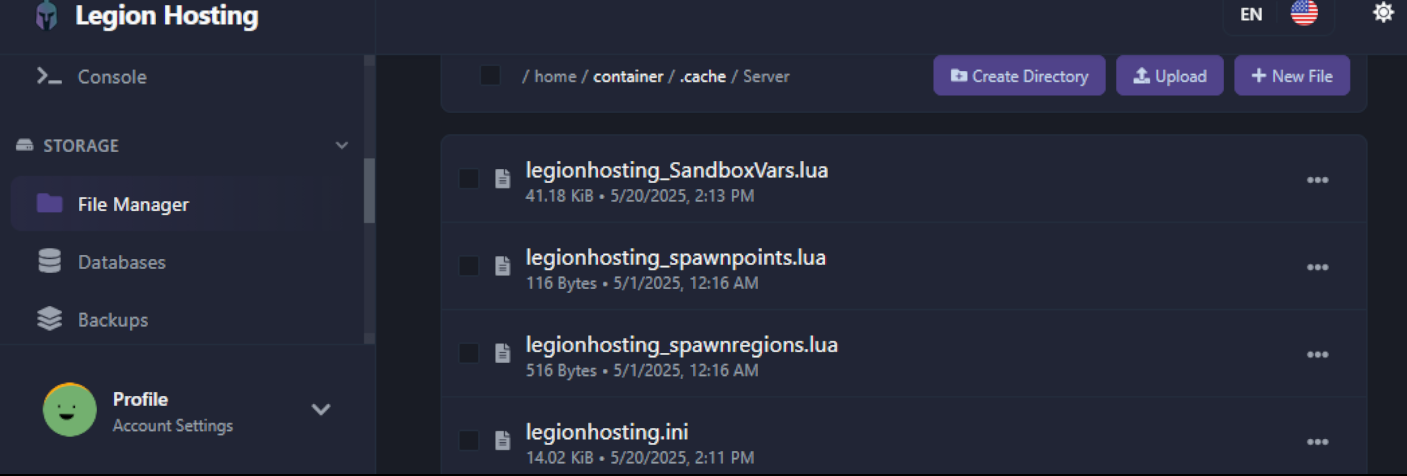
Project Zomboid gemmer sin serverkonfiguration i to filer inde i /.cache/server/ mappen på din server. Begge filer bruger dit servernavn som en del af deres filnavn.
| Fil | Formål |
|---|---|
/.cache/server/servername.ini |
Grundlæggende serverindstillinger — adgangskode, spillerpladser, porte, PvP, stemmechat og mere |
/.cache/server/servername_SandboxVars.lua |
Spil- og verdensindstillinger — zombiepopulation, loot-mængde, hastighed, respawn-rater |
servertest medmindre du har ændret det. Hvis du er usikker, tjek GPanel Startup-fanen — det er værdien i feltet Server Name.
Trin 1 — Åbn File Manager i GPanel
- Log ind på GPanel.
- Klik på din Project Zomboid server fra serverlisten.
- I fanen Console, klik Stop hvis serveren kører. Vent til status skifter til Offline inden du fortsætter.
- Klik på fanen Files for at åbne filhåndteringen.
- Naviger til mappen
.cache/server/. Du skal muligvis klikke på Show Hidden Files eller skifte synlighed af skjulte filer, hvis.cachemappen ikke er synlig — den begynder med et punktum.
Trin 2 — Rediger serverindstillingsfilen (.ini)
.ini filen styrer den grundlæggende serverkonfiguration. Klik på filen for at åbne den i den integrerede editor.
Almindeligt ændrede indstillinger
| Indstilling | Beskrivelse | Eksempelværdi |
|---|---|---|
PublicName |
Servernavnet der vises i den offentlige serverbrowser | My PZ Server |
PublicDescription |
Kort beskrivelse der vises i serverbrowseren | Welcome! Friendly server. |
Password |
Adgangskode som spillere skal indtaste for at tilslutte sig. Lad den være tom for ingen adgangskode. | hunter2 |
MaxPlayers |
Maksimalt antal samtidige spillere | 16 |
PVP |
Aktiver eller deaktiver spiller-mod-spiller kamp | true eller false |
Public |
Om serveren vises i den offentlige serverliste | true eller false |
DefaultPort |
UDP port som serveren lytter på (standard 16261). Match denne med GPanels tildelte port. | 16261 |
Map |
Kortnavn. Brug Muldraugh, KY for standardkortet. Tilføj mod-kort adskilt med semikolon. |
Muldraugh, KY |
Mods |
Semikolon-separeret liste af Mod IDs. B41 format: modid1;modid2. B42 format: \modid1;\modid2; |
2392509783;2400857388 |
WorkshopItems |
Semikolon-separerede Workshop item IDs (skal matche Mods listen) |
2392509783;2400857388 |
Mods skal have en matchende post under WorkshopItems. En uoverensstemmelse er en almindelig årsag til serveropstartsfejl efter tilføjelse af mods.
Når du har foretaget dine ændringer, klik Save i fileditoren. Start ikke serveren endnu, hvis du også vil redigere sandbox-variabler — gennemfør trin 3 først.
Trin 3 — Sandbox-variabler (spilindstillinger)
Sandbox-variabler styrer spiloplevelsen: hvor mange zombier der spawner, hvor hurtigt de bevæger sig, loot-sjældenhed og snesevis af andre verdensparametre. Disse ligger i servername_SandboxVars.lua i den samme /.cache/server/ mappe.
Redigering af SandboxVars-filen direkte
Hvis du foretrækker at redigere filen, er formatet en Lua-tabel. Hver indstilling er på sin egen linje:
SandboxVars = {
    Zombies = 3,          -- Population: 1=Insane, 2=Very High, 3=High, 4=Normal, 5=Low
    Distribution = 2,     -- Zombie distribution: 1=Urban focused, 2=Uniform
    ZombieSpeedType = 3,  -- Speed: 1=Sprinters, 2=Fast Shamblers, 3=Shamblers, 4=Crawlers
    LootAbundance = 3,    -- Loot: 1=Insane, 2=Abundant, 3=Normal, 4=Scarce, 5=Very Scarce
    DayLength = 2,        -- In-game day length in hours: 1=1h, 2=2h ... 15=15h, 16=Real Time
    StartYear = 1,        -- Starting year (offsets from 1993)
    StartMonth = 7,       -- Starting month (1–12)
    StartDay = 9,         -- Starting day (1–31)
    WaterShut = 0,        -- Tap water shutoff: 0=Never, 1=Instant ... 14=2 years
    ElecShut = 0,         -- Electricity shutoff: 0=Never, 1=Instant ... 14=2 years
    HoursForCorpseRemoval = 0,  -- 0=Never auto-remove
    CharacterFreePoints = 0,    -- Bonus starting trait points
}Fejlfinding
Mine ændringer i .ini filen blev ikke gemt
- Den mest sandsynlige årsag er, at serveren stadig kørte, da du gemte filen. Project Zomboid overskriver konfigurationen ved nedlukning. Stop serveren først, rediger filen, gem den, og start derefter serveren.
- Bekræft at du gemte filen i GPanel's editor inden du navigerede væk — kig efter en bekræftelsesnotifikation eller tjek at filens sidst-ændret tidsstempel blev opdateret.
Jeg kan ikke se .cache mappen i filhåndteringen
- Skjulte mapper (dem der starter med et punktum) vises ikke som standard. Kig efter en Show Hidden Files knap eller afkrydsningsfelt i GPanel Files-fanen og aktiver den.
- Hvis mappen slet ikke eksisterer, har serveren ikke kørt endnu. Start og stop serveren én gang for at generere konfigurationsfilerne, og rediger dem derefter.
Sandbox-indstillinger ændres ikke i den aktive verden
- Ændringer i
_SandboxVars.luafilen træder kun i kraft ved en ny verden. For en eksisterende kørende verden, brug fanen Options i in-game admin-panelet til at justere indstillinger uden at slette verdenen.

