Den här guiden går igenom hur du återställer eller wipear världen på din Project Zomboid-server hos Legion Hosting. Oavsett om du behöver en ny start efter en stor uppdatering, vill återhämta dig från korruption av världen eller om din community är redo för en ny karta, tar processen bara några minuter via GPanel.
Förutsättningar
- Åtkomst till GPanel för din Project Zomboid-server
- Din server måste vara stoppad innan du raderar några världsfiler
Var Project Zomboid lagrar världsdata
Project Zomboid lagrar all världs-save-data i katalogen .cache på din server. Namnet på world-mappen matchar ditt servernamn (anges i dina startparametrar — vanligtvis servertest som standard).
| Sökväg (GPanel filhanterare) | Innehåller |
|---|---|
/.cache/saves/multiplayer/<servername>/ |
Världs-save-data (kartdelar, spelarinventarier, zombies, strukturer, spelar-save-filer) |
/.cache/server/<servername>.ini |
Serverinställningar (sandbox-alternativ, spawn-regler) — raderas inte vid en världsåterställning |
/.cache/db/ |
Spelarinloggningsdatabas — lagrar spelarnas anslutningsuppgifter och inloggningsdata |
/.cache/Logs/ |
Serverloggfiler — säkra att behålla eller radera |
Metod 1 — Radera save-mappen
Detta är det vanligaste tillvägagångssättet. Det tar bort all världsdata och spelar-save-filer samtidigt som din serverkonfiguration bevaras intakt.
- Logga in på GPanel och välj din Project Zomboid-server.
- På fliken Console, klicka på Stop och vänta tills servern visar Offline.
- Klicka på File Manager i vänster sidofält.
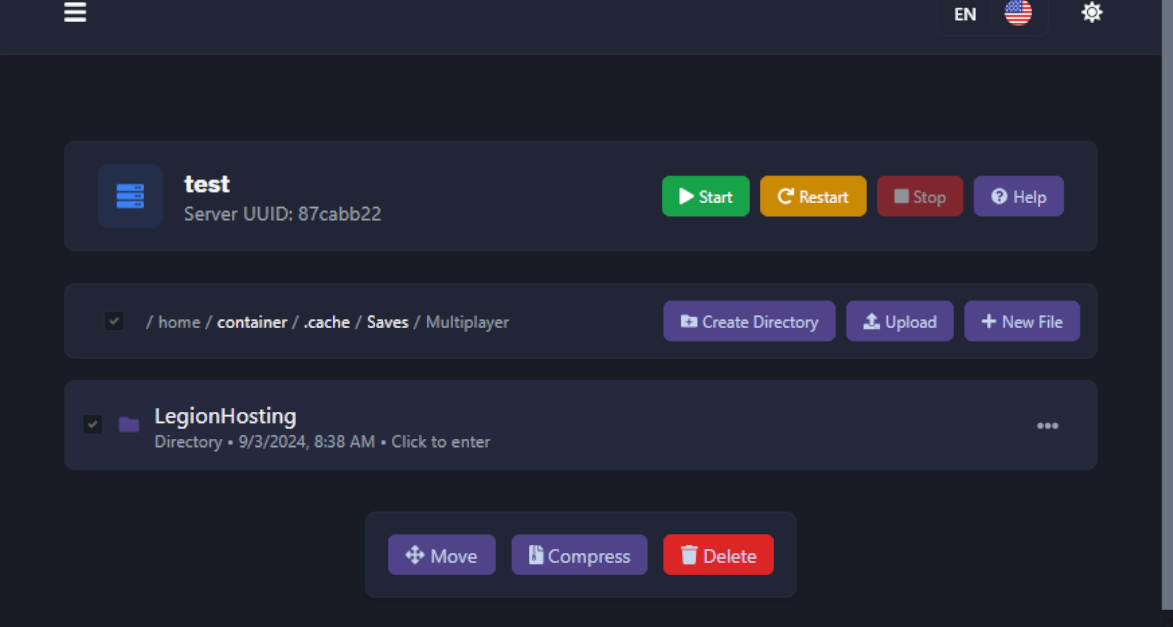
- Gå till:
/.cache/saves/multiplayer/
- Du ser en eller flera mappar uppkallade efter din server (t.ex.
servertest). - Högerklicka på mappen för din server och välj Delete. Bekräfta raderingen.
- Återgå till fliken Console och klicka på Start. En ny värld genereras automatiskt under samma servernamn.
Metod 2 — Byt servernamn
Om du vill behålla den gamla världen åtkomlig istället för att radera den kan du ändra servernamnet i dina startinställningar. Project Zomboid skapar en ny save-mapp för det nya namnet och lämnar den gamla intakt.
- Stoppa din server.
- I GPanel, gå till fliken Startup.
- Hitta fältet Server Name och ändra det till ett nytt namn (t.ex.
servertest2). - Klicka på Save.
- Starta din server. En ny värld genereras under det nya namnet.

/.cache/saves/multiplayer/ under det gamla namnet. Du kan radera den senare om du inte längre behöver den, eller byta tillbaka till den genom att ändra servernamnet tillbaka.
/.cache/server/<servername>.ini) påverkas inte av en världsåterställning. Dina sandbox-inställningar, spawn-regler och andra serveralternativ överförs till den nya världen.
Säkerhetskopiera innan en wipe
Det finns tre sätt att säkerhetskopiera din värld innan du wipear:
Alternativ A — GPanel-fliken Backups
Den enklaste metoden. GPanel har ett inbyggt säkerhetskopieringssystem som skapar en fullständig ögonblicksbild av dina serverfiler.
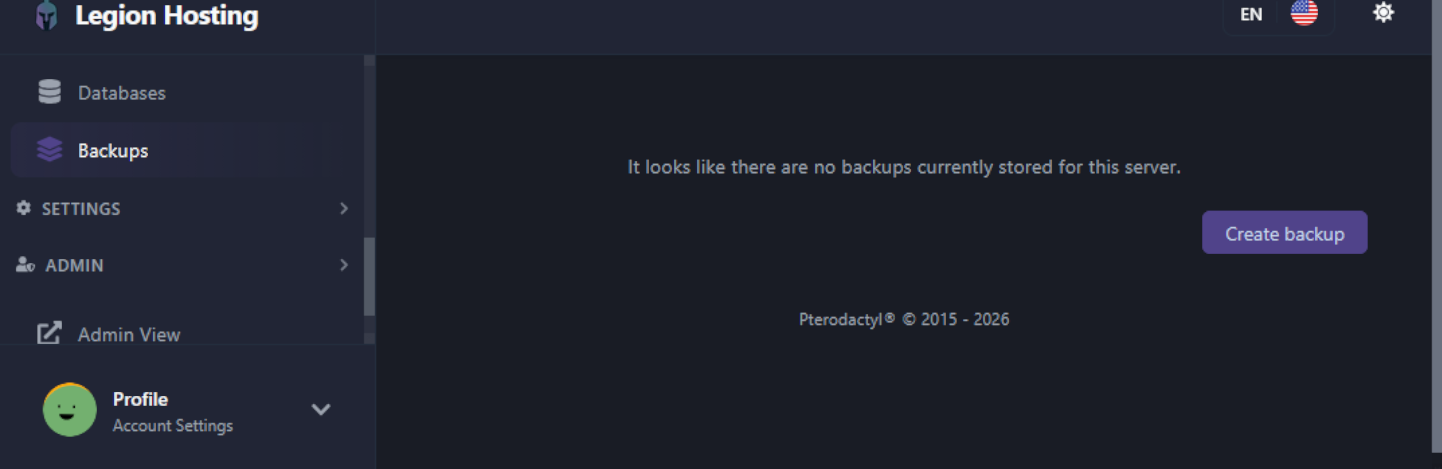
- I GPanel, klicka på fliken Backups i vänster sidofält.
- Klicka på Create Backup.
- Vänta tills säkerhetskopian är klar — den visas i säkerhetskopielistan.
- Du kan ladda ner eller återställa säkerhetskopian när som helst från denna flik.
Alternativ B — GPanel filhanterare
- Gå till
/.cache/saves/multiplayer/i filhanteraren. - Högerklicka på serverns save-mapp och välj Archive (eller Compress).
- Ladda ner den resulterande
.tar.gz-filen till din dator.
Alternativ C — SFTP
- Anslut till din server via SFTP (se vår SFTP-guide).
- Gå till
/home/container/.cache/saves/multiplayer/. - Dra serverns save-mapp till din lokala dator.
Felsökning
Servern fortsätter ladda den gamla världen efter att mappen raderats
- Se till att servern var helt stoppad innan du raderade filerna. Om servern kördes kan den ha sparat om världen vid avstängning.
- Bekräfta att du raderade rätt mapp — mappnamnet måste matcha ditt Server Name i fliken Startup.
- Stoppa servern, verifiera att mappen är borta i filhanteraren och starta sedan igen.
Ny värld genererad men inställningarna är annorlunda
- Om du använde Metod 2 (ändrade servernamnet) kan Project Zomboid skapa en ny
.ini-konfigurationsfil med standardinställningar för det nya namnet. Kopiera dina sandbox-inställningar från den gamla.ini-filen till den nya på/.cache/server/<newname>.ini.
Spelare kan inte ansluta efter wipen
- Om du ändrade servernamnet behöver spelare inte ändra något på sin sida — anslutnings-IP och port förblir desamma.
Behöver du fortfarande hjälp?
Öppna ett supportärende och inkludera ditt servernamn och vad du raderade.

