
Questa guida spiega come passare il tuo server Project Zomboid tra Build 41 (B41) e Build 42 (B42) tramite GPanel. Copre la compatibilità dei salvataggi, il backup del tuo mondo e l'esecuzione del passaggio in autonomia.
Prima del Passaggio: Comprendere il Problema di Compatibilità dei Salvataggi
Project Zomboid memorizza tutti i dati di mondo e personaggio in una cartella di salvataggio legata alla versione di build con cui è stata creata. Le due build utilizzano formati diversi per i chunk della mappa, le definizioni degli oggetti e i dati del personaggio.
| Build | Beta Branch di Steam | Può Usare Salvataggi B41? | Può Usare Salvataggi B42? |
|---|---|---|---|
| Build 41 (B41) | (vuoto) | Sì | No |
| Build 42 (B42) | unstable |
No | Sì |
Il beta branch viene impostato nella scheda Startup del tuo server in GPanel.
Una volta completato il passaggio, il tuo server partirà da zero sulla nuova build. Qualsiasi mondo esistente sulla build precedente sarà ancora presente nella cartella di salvataggio, ma il server non lo caricherà. Non verrà eliminato automaticamente — semplicemente non verrà utilizzato. Dovrai cambiare il nome del server o eliminare i dati di salvataggio esistenti prima di avviare la nuova build.
Passaggio 1 — Esegui il Backup del Tuo Mondo Attuale
Prima di passare di build, scarica una copia del tuo salvataggio attuale. Anche se non hai intenzione di tornare alla vecchia build, avere un backup ti protegge da perdite accidentali di dati e ti dà qualcosa da ripristinare se le circostanze cambiano.
Opzione A: Backup tramite GPanel
- Accedi a GPanel e seleziona il tuo server Project Zomboid.
- Arresta il server usando il pulsante Stop nella scheda Console e attendi che lo stato mostri Offline.
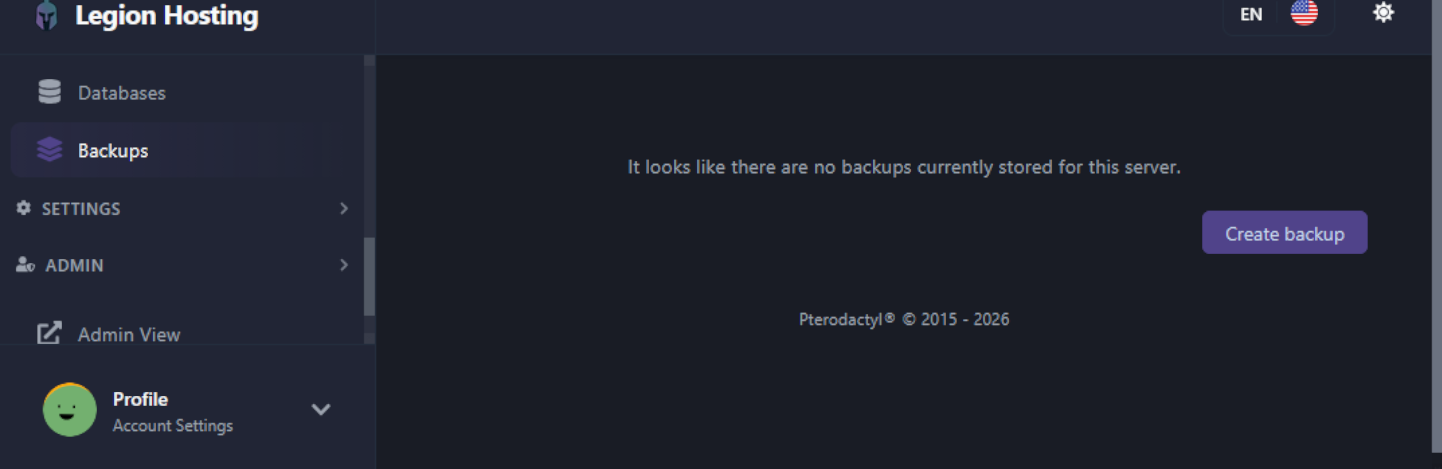
- Vai alla scheda Backups in GPanel.
- Clicca su Create Backup e attendi il completamento. Il backup apparirà nella lista sottostante.
- Una volta che il backup è elencato, clicca sull'icona di download per salvarlo localmente.
Opzione B: Scarica la Cartella di Salvataggio tramite SFTP
Se vuoi scaricare solo i dati di salvataggio del mondo invece di un backup completo del server, connettiti al tuo server tramite SFTP e scarica manualmente la cartella di salvataggio.
- In GPanel, vai alla scheda SFTP e annota l'hostname SFTP, la porta, l'username e la password.
- Apri un client SFTP come FileZilla e connettiti usando quelle credenziali.
- Naviga alla directory di salvataggio del mondo:
/home/container/.cache/saves/multiplayer/<YourWorldName>/ - Scarica l'intera cartella
<YourWorldName>sul tuo computer locale.
Passaggio 2 — Cambia la Build in GPanel
Il passaggio tra B41 e B42 viene effettuato tramite le opzioni di avvio del tuo server. Non è necessario un ticket di supporto.
- Accedi a GPanel e seleziona il tuo server Project Zomboid.
- Assicurati che il server sia arrestato.
- Vai alla scheda Startup.
- Individua il campo Beta Branch:
- Per passare a B41: lascia il campo Beta Branch vuoto.
- Per passare a B42: inserisci
unstablenel campo Beta Branch.
- Cambia il Server Name nella scheda Startup con un nome diverso da quello attuale. Questo impedisce alla nuova build di tentare di caricare dati di salvataggio incompatibili.
- Vai alla scheda Settings e clicca su Reinstall Server. Questo scaricherà i file di gioco corretti per la build selezionata.
- Avvia il server. Genererà un mondo nuovo sotto il nuovo nome del server.
.cache/, quindi reinstallare. La cartella .cache/ contiene la configurazione del tuo server, quindi questo preserva le tue impostazioni assicurando un'installazione di gioco pulita per la nuova build. Usa questo metodo solo se non vuoi cambiare il nome del tuo server — nota che i dati di salvataggio sotto il vecchio nome del server dovranno essere eliminati manualmente da .cache/saves/multiplayer/.
Compatibilità delle Mod Dopo il Passaggio
Le mod non sono compatibili tra le build. Una mod scritta per B41 non funzionerà su B42, e viceversa. Dopo il passaggio, dovrai rivedere e sostituire l'intero elenco delle mod.
- Passaggio da B41 a B42: La maggior parte delle mod B41 popolari è stata aggiornata o sostituita con versioni B42. Controlla lo Steam Workshop per le versioni specifiche B42 delle mod che stavi utilizzando. Nota che anche il formato
WorkshopItemsè cambiato in B42 — consulta la guida all'installazione delle mod per il formato corretto di B42. - Passaggio da B42 a B41: Le mod B42 non si caricheranno su B41. Devi trovare e installare le versioni B41 originali di qualsiasi mod tu voglia utilizzare. Controlla lo Steam Workshop per gli autori di mod che mantengono branch B41 separati.
Domande Frequenti
Posso mantenere il mio mondo B41 e avere anche un mondo B42?
Non sullo stesso server contemporaneamente — una singola istanza del server esegue una build alla volta. Tuttavia, i file di salvataggio B41 rimangono sul disco dopo il passaggio a B42. Se in futuro torni a B41 e ripristini il nome originale del server, il vecchio salvataggio può essere caricato di nuovo. I dati di salvataggio precedenti sono archiviati in .cache/saves/multiplayer/ e non vengono eliminati automaticamente durante un cambio di build.
Tornare a B41 ha qualche costo?
No. Il cambio di build viene effettuato interamente tramite GPanel senza costi aggiuntivi. Gli slot server di Project Zomboid B41 e B42 hanno lo stesso prezzo presso Legion Hosting.
I miei giocatori ricevono un errore di mancata corrispondenza di versione dopo il passaggio
Ciò significa che il server e il client di gioco del giocatore sono su versioni di build diverse. I giocatori devono allineare il loro beta branch di Steam alla build del server:
- Su Steam, clicca con il tasto destro su Project Zomboid e seleziona Properties.
- Clicca sulla scheda Betas.
- Dal menu a tendina, seleziona None — questo ti darà la build predefinita attuale (B41).
- Se il server sta eseguendo B42, seleziona invece unstable.
- Attendi che Steam aggiorni il gioco, quindi avvia e connettiti.
Hai ancora bisogno di aiuto?
Se incontri problemi durante il passaggio, apri un ticket di supporto e ti assisteremo.

