Este guia explica como alternar seu servidor de Project Zomboid entre Build 41 (B41) e Build 42 (B42) através do GPanel. Ele cobre compatibilidade de saves, backup do seu mundo e como realizar a troca por conta própria.
Antes de Trocar: Entenda o Problema de Compatibilidade de Saves
Project Zomboid armazena todos os dados do mundo e dos jogadores em uma pasta de save vinculada à versão da build em que foi criado. As duas builds utilizam formatos diferentes para chunks do mapa, definições de itens e dados de personagens.
| Build | Branch Beta do Steam | Pode Usar Saves de B41? | Pode Usar Saves de B42? |
|---|---|---|---|
| Build 41 (B41) | (em branco/vazio) | Sim | Não |
| Build 42 (B42) | unstable |
Não | Sim |
A branch beta é definida na aba Startup do seu servidor no GPanel.
Quando a troca for concluída, seu servidor iniciará do zero na nova build. Qualquer mundo existente na build anterior ainda estará presente na pasta de save, mas o servidor não o carregará. Ele não será deletado automaticamente — simplesmente não será utilizado. Você deve alterar o nome do servidor ou deletar os dados de save existentes antes de iniciar na nova build.
Passo 1 — Faça Backup do Seu Mundo Atual
Antes de trocar de build, baixe uma cópia do seu save atual. Mesmo que você não planeje voltar para a build antiga, ter um backup protege contra perda acidental de dados e lhe dá algo para restaurar caso as circunstâncias mudem.
Opção A: Backup via GPanel
- Faça login no GPanel e selecione seu servidor de Project Zomboid.
- Pare o servidor usando o botão Stop na aba Console e aguarde o status mostrar Offline.
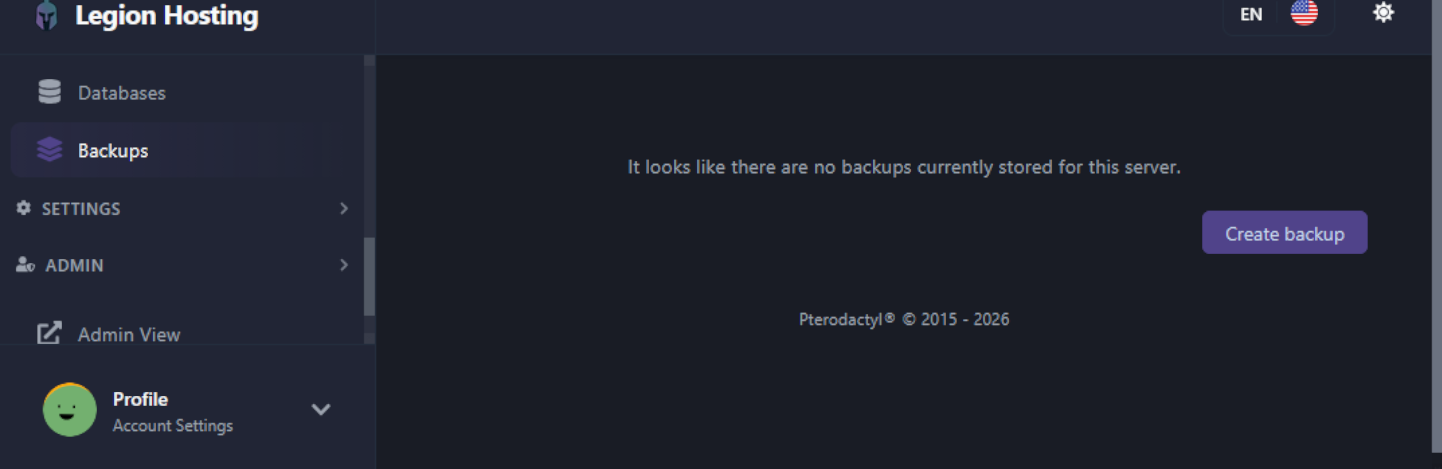
- Navegue até a aba Backups no GPanel.
- Clique em Create Backup e aguarde a conclusão. O backup aparecerá na lista abaixo.
- Assim que o backup estiver listado, clique no ícone de download para salvá-lo localmente.
Opção B: Baixar a Pasta de Save via SFTP
Se você deseja baixar apenas os dados de save do mundo em vez de um backup completo do servidor, conecte-se ao seu servidor via SFTP e baixe a pasta de save manualmente.
- No GPanel, vá até a aba SFTP e anote o hostname, porta, nome de usuário e senha do SFTP.
- Abra um cliente SFTP como o FileZilla e conecte-se usando essas credenciais.
- Navegue até o diretório de save do mundo:
/home/container/.cache/saves/multiplayer/<YourWorldName>/ - Baixe a pasta inteira
<YourWorldName>para sua máquina local.
Passo 2 — Trocar a Build no GPanel
A troca entre B41 e B42 é feita pelas opções de inicialização do seu servidor. Nenhum ticket de suporte é necessário.
- Faça login no GPanel e selecione seu servidor de Project Zomboid.
- Certifique-se de que o servidor esteja parado.
- Vá até a aba Startup.
- Localize o campo Beta Branch:
- Para trocar para B41: deixe o campo Beta Branch em branco (vazio).
- Para trocar para B42: digite
unstableno campo Beta Branch.
- Altere o Server Name na aba Startup para um novo nome diferente do atual. Isso evita que a nova build tente carregar dados de save incompatíveis.
- Vá até a aba Settings e clique em Reinstall Server. Isso baixa os arquivos corretos do jogo para a build selecionada.
- Inicie o servidor. Ele gerará um mundo novo com o novo nome do servidor.
.cache/, e então reinstalar. A pasta .cache/ contém a configuração do seu servidor, então isso preserva suas configurações enquanto garante uma instalação limpa do jogo para a nova build. Use este método apenas se você não quiser alterar o nome do servidor — note que os dados de save com o nome antigo do servidor precisarão ser deletados manualmente de .cache/saves/multiplayer/.
Compatibilidade de Mods Após a Troca
Mods não são compatíveis entre builds. Um mod feito para B41 não funcionará na B42, e vice-versa. Após a troca, você precisará revisar e substituir toda a sua lista de mods.
- Trocando de B41 para B42: A maioria dos mods populares de B41 foram atualizados ou substituídos por versões para B42. Verifique a Steam Workshop para versões específicas de B42 dos mods que você estava usando. Note que o formato de
WorkshopItemstambém mudou na B42 — consulte o guia de instalação de mods para o formato correto da B42. - Trocando de B42 para B41: Mods de B42 não carregarão na B41. Você deve encontrar e instalar as versões originais de B41 de quaisquer mods que deseja usar. Verifique a Steam Workshop para autores de mods que mantêm branches separadas para B41.
Perguntas Frequentes
Posso manter meu mundo B41 e também ter um mundo B42?
Não simultaneamente no mesmo servidor — uma única instância de servidor executa apenas uma build por vez. No entanto, seus arquivos de save de B41 permanecem no disco após trocar para B42. Se você voltar para B41 no futuro e restaurar o nome original do servidor, o save antigo poderá ser carregado novamente. Seus dados de save anteriores estão armazenados em .cache/saves/multiplayer/ e não são deletados automaticamente durante uma troca de build.
Voltar para B41 terá algum custo?
Não. A troca de build é feita inteiramente pelo GPanel sem custo adicional. Os slots de servidor de Project Zomboid B41 e B42 têm o mesmo preço na Legion Hosting.
Meus jogadores estão recebendo um erro de incompatibilidade de versão após a troca
Isso significa que o servidor e o cliente do jogo do jogador estão em versões de build diferentes. Os jogadores precisam corresponder sua branch beta do Steam com a build do servidor:
- No Steam, clique com o botão direito em Project Zomboid e selecione Properties.
- Clique na aba Betas.
- No menu suspenso, selecione None — isso fornece a build padrão atual (B41).
- Se o servidor está rodando B42, selecione unstable em vez disso.
- Aguarde o Steam atualizar o jogo, depois abra e conecte-se.
Ainda precisa de ajuda?
Se você encontrar problemas durante a troca, abra um ticket de suporte e nós iremos ajudá-lo.

