ARK: Survival Ascended använder separata spel- och query-portar, kräver specifika serverbläddrarfilter för att hitta inofficiella servrar och stöder både crossplay- och direktanslutningsmetoder. Den här guiden täcker alla sätt att ansluta till din ASA-server hos Legion Hosting.
Förutsättningar
- En aktiv ARK: Survival Ascended-server hos Legion Hosting
- Din servers IP-adress och spelport — hitta dessa i GPanel under Console eller fliken Network
- ARK: Survival Ascended installerat på din PC eller konsol (Epic eller Steam)
- BattleEye måste vara aktiverat eller inaktiverat konsekvent på både servern och klienten — felmatchade inställningar förhindrar anslutning
Metod 1 — Hitta din server i bläddraren
Serverbläddraren i spelet visar din server när den körs, men du måste tillämpa rätt filter annars visas den inte i standardvyn.
- Starta ARK: Survival Ascended och nå huvudmenyn.
- Klicka på Join Game.
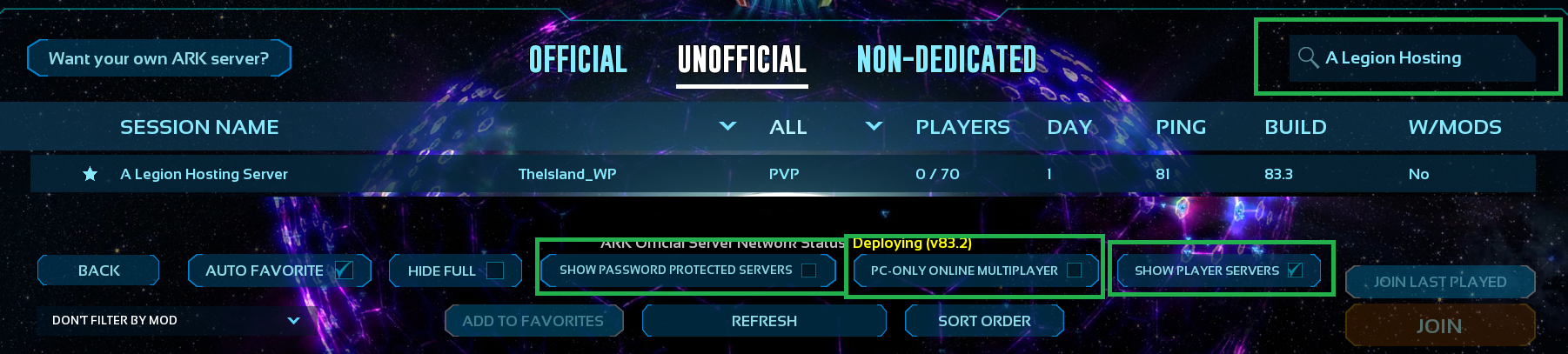
- Längst upp i serverlistan, öppna rullgardinsmenyn Server Type (eller Session Filter) och välj Unofficial, välj sedan Player Servers (eller Unofficial Player Servers i vissa versioner).
- Om du ser en kryssruta märkt Show PC Only, Show Console Only eller liknande plattformslåsningsalternativ, avmarkera den. Att lämna detta ikryssat döljer crossplay-servrar och är den vanligaste anledningen till att en server inte visas.
- I sökrutan, skriv en del av din servers namn som det är inställt i GPanel (kontrollera din servers startparametrar för värdet
SessionName). - Klicka på Search eller tryck på Enter och vänta tills resultaten fylls i.
- Hitta din server i listan, klicka på den och klicka sedan på Join.
Metod 2 — Direktanslutning via konsolkommando
Direktanslutning kringgår serverbläddraren helt. Detta är den mest tillförlitliga metoden och fungerar även när serverbläddraren är långsam eller servern ännu inte har propagerats till listningen.
- Starta ARK: Survival Ascended och nå huvudmenyn.
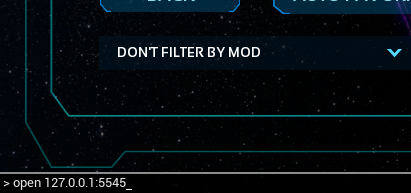
- Tryck på tilde-tangenten (~) eller ` för att öppna konsolen i spelet. Om konsolen inte öppnas, se till att din tangentbordslayout stöds — vissa icke-amerikanska layouter använder en annan tangent.
-
Skriv följande kommando och ersätt
YOUR_IPochGAME_PORTmed värdena från GPanel:
Exempel:open YOUR_IP:GAME_PORTopen 203.0.113.45:7777 - Tryck på Enter. Spelet försöker ansluta omedelbart.
- Om servern har ett lösenord inställt visas en uppmaning som ber om det innan du släpps in.
open kräver porten som spelare faktiskt ansluter på (standard 7777). Att använda query-porten (t.ex. 7778) resulterar i en misslyckad anslutning.
Förstå query-porten
Query-porten är skild från spelporten och används endast för listning i serverbläddraren — den anges inte när du använder open för att direktansluta.
open IP:port) och spelandet påverkas inte. Om du inte behöver en bläddrarlistning kan du tryggt ignorera query-porten.
| Port | Standard | Syfte | Var den används |
|---|---|---|---|
| Spelport | 7777 |
Spelare ansluter via denna port för att faktiskt gå med på servern | open IP:7777 i konsolen; anslutning via serverbläddraren |
| Query-port | 7778 |
Pollning av serverbläddraren — Steam/Epic frågar denna för att lista serverinformation | Vissa tredjepartsverktyg (ArkServers.io, battlemetrics) ber om denna port |
Båda portarna är synliga i GPanel under Network. Om din server tilldelades icke-standardportar, använd värdena som visas där — anta inte 7777/7778.
Crossplay- och BattleEye-inställningar
Crossplay (PC- och konsolspelare tillsammans)
ASA stöder crossplay mellan Steam, Epic Games och konsoler när servern har crossplay aktiverat.
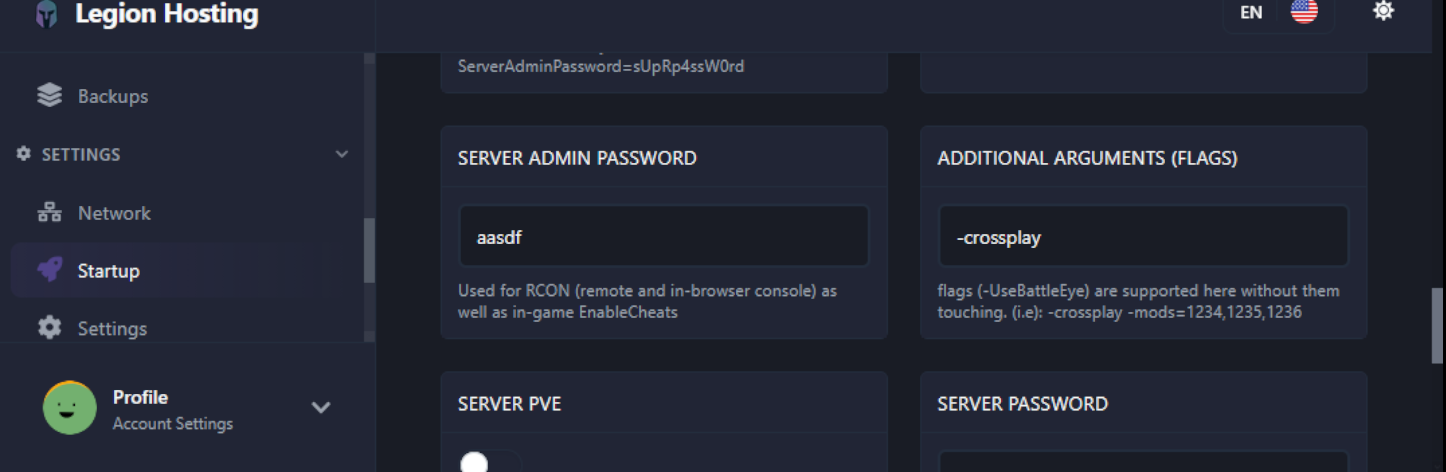
- I GPanel, gå till din servers flik Startup.
- Hitta Crossplay-växeln eller startflaggan
-crossplayoch se till att den är aktiverad. - I serverbläddraren visas crossplay-servrar i den kombinerade listningen — se till att filtret Show PC/Console Only är avmarkerat (som beskrivs i Metod 1, Steg 4) så att dessa servrar är synliga för alla spelare.
BattleEye Anti-Cheat
BattleEye måste matcha mellan servern och klienten. En missmatchning är en av de vanligaste anledningarna till att en spelare kan hitta en server i bläddraren men inte faktiskt kan ansluta.
- Serversidan: Kontrollera fliken Startup i GPanel efter en BattleEye-växel. Notera om den är på eller av.
- Klientsidan (Steam): I ditt Steam-bibliotek, högerklicka på ARK: Survival Ascended, välj Properties och sedan Launch Options. Lägg till
-NoBattlEyeför att inaktivera det, eller ta bort den flaggan för att aktivera det. - Klientsidan (Epic): Epic-launchern visar en uppmaning vid start som frågar om du vill spela med eller utan BattleEye.
- Både servern och varje anslutande spelare måste använda samma BattleEye-inställning.
Verifiering
- I GPanel, bekräfta att serverstatusen visar Running under fliken Console innan du försöker ansluta. En server i tillståndet Starting är inte redo att acceptera anslutningar.
- Prova direktanslutningsmetoden (
open IP:port) först — detta är snabbare än att vänta på att bläddraren uppdateras och bekräftar att servern faktiskt är nåbar. - När du är inne, öppna paus-menyn i spelet och verifiera att servernamnet matchar din förväntade server. Detta utesluter att du av misstag har anslutit till en annan server med ett liknande namn.
- Kontrollera spelarlistan eller adminloggen för att bekräfta att din anslutning registrerades.
Felsökning
Servern visas inte i bläddraren
- Bekräfta att servern är helt startad i GPanel (status: Running, inte Starting).
- Ställ in filtret på Unofficial > Player Servers och avmarkera eventuell kryssruta för PC-only eller Console-only.
- Rensa namnsökfältet och bläddra manuellt —
SessionNamei GPanels Startup-flik måste exakt matcha det du söker efter. - Bläddraren kan ta 5–10 minuter på sig att fånga upp en nystartad server. Prova en direktanslutning under tiden.
- Serverbläddraren kräver en query-port. Kontrollera GPanels flik Network — om endast spelporten är allokerad och ingen query-port listas, visas din server inte i bläddraren. Använd direktanslutning istället, eller kontakta supporten för att begära en query-portallokering.
Direktanslutning misslyckas omedelbart
- Dubbelkolla att du använder spelporten, inte query-porten.
- Se till att det inte finns några mellanslag i kommandot
open IP:portannat än mellanslaget efteropen. - Bekräfta att servern körs — en stoppad eller kraschad server avvisar anslutningar tyst.
- Prova att pinga IP:n från en kommandotolk (
ping YOUR_IP) för att bekräfta grundläggande nätverksnåbarhet.
Anslutningen får timeout eller bryts under inläsning
- Kontrollera GPanels konsolutskrift efter fel. Vanliga orsaker är att servern får slut på minne mitt i inläsningen eller att en mod inte lyckas initieras.
- Om mods är installerade, bekräfta att alla spelare har samma modlista och laddningsordning. Felmatchade mods orsakar en timeout under den inledande anslutningshandskakningen.
- Minska tillfälligt antalet aktiva mods för att isolera om en specifik mod orsakar frånkopplingen.
Lösenordsuppmaning visas inte / felaktigt lösenord-fel
- I GPanels flik Startup, hitta fältet
ServerPasswordeller Server Password och bekräfta att lösenordet är korrekt inställt. - Efter att ha ändrat lösenordet i GPanel, starta om servern helt — en server som körs tillämpar inte startändringar förrän den startas om.
- Lösenord är skiftlägeskänsliga. Bekräfta att Caps Lock är av när du anger lösenordet i spelet.
BattleEye-missmatchningsfel vid anslutning
Felmeddelandet lyder vanligtvis något i stil med "You are running with BattleEye disabled" eller "Server requires BattleEye". Så här åtgärdar du det:
- Notera BattleEye-inställningen på servern (GPanels Startup-flik).
- Matcha den på din klient med Steam-startalternativet (
-NoBattlEyeför att inaktivera) eller Epic-launcherns uppmaning. - Starta om ASA och återanslut.

