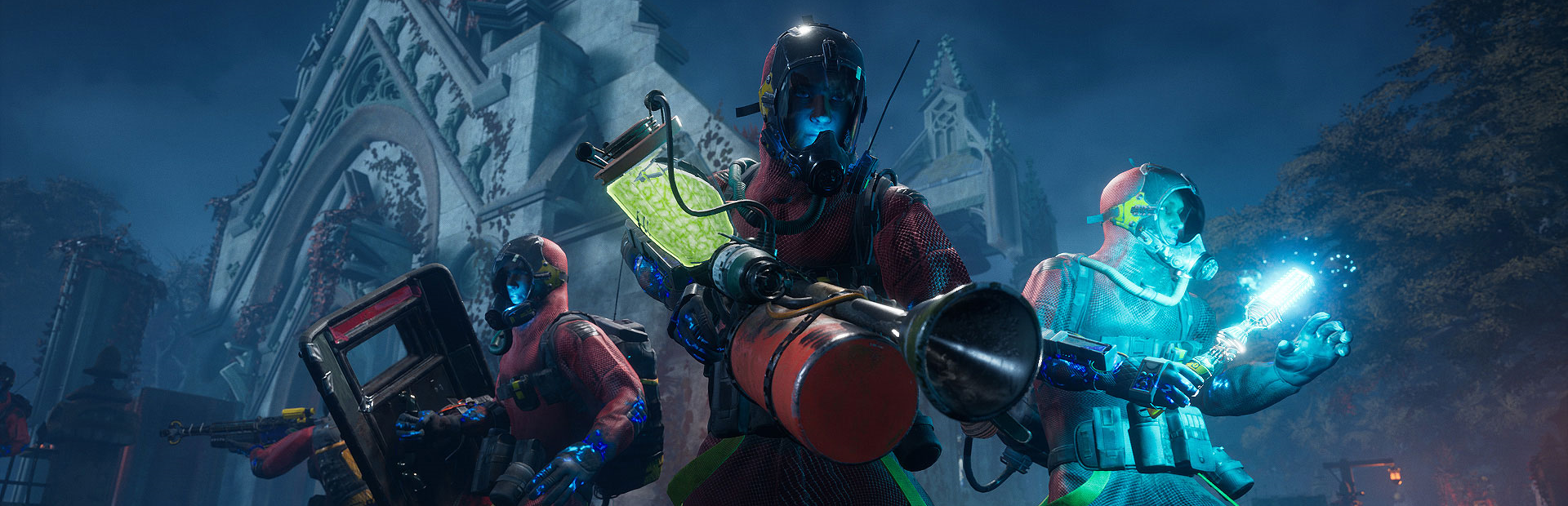
See juhend käsitleb Portal Knights pühendatud serveri administraatori ja hosti juhtelemente, sealhulgas mängijate haldamist, maailma haldamist ja levinud probleemide tõrkeotsingut. Serveri esmase seadistamise kohta vaadake Portal Knights serveri seadistamise juhend.
1. Administraatori / hosti õigused
Portal Knights mängus on serveri omanikul (kontol, mis lõi maailma) hosti taseme õigused. Pühendatud serveris hallatakse administraatori juhtelemente järgmiselt:
- Serveri konfiguratsioonifail: Juhib serveriüleseid seadeid nagu PvP, raskusaste ja maksimaalne mängijate arv.
- GPanel konsool: Serveri käivitamine, peatamine ja taaskäivitamine; logide ja väljundi vaatamine.
- Mängusisene hosti menüü: Hosti mängija saab mängijaid välja visata ja hallata põhilisi seansi seadeid.
Administraatori juurdepääsu seadistamine
Esimene mängija, kes liitub serveriga pärast uue maailma loomist, saab tavaliselt hosti õigused. Administraatori juurdepääsu tagamiseks:
- Käivitage server GPanel-ist.
- Olge esimene mängija, kes serveriga ühendub.
- Teil on hosti taseme juhtelemendid mängusiseses pausi menüüs.
2. Mängijate haldamine
Mängijate välja viskamine
Hostina saate häirivaid mängijaid oma serverist eemaldada:
- Avage mängusisene pausi menüü, olles serveriga ühendatud.
- Navigeerige mängijate loendisse.
- Valige mängija, kelle soovite eemaldada.
- Valige Kick, et ta seansist eemaldada.
Serveri parooli kasutamine
Kõige tõhusam viis kontrollida, kes saab teie serveriga liituda, on parool. Seadke see GPanel Startup vahekaardil või serveri konfiguratsioonifailis:
"admins": { "credentials": { "password": "YourSecretPassword" } }Ainult mängijad, kes teavad parooli, saavad ühenduda. Muutke parooli ja taaskäivitage server, et kohe soovimatud mängijad välja lukustada.
Maksimaalne mängijate arv
Portal Knights toetab kuni 4 mängijat kooperatiivis. Kontrollige mängijate arvu järgmiselt:
"users": { "credentials": { "password": "user_password" } }Seadke see väiksemale väärtusele, kui soovite kontrollitumat grupi suurust (nt 2 paarimänguks).
3. Maailma haldamine
Maailmade vahetamine
Saate käitada mitut maailma samal serveril, muutes world_name seadet:
- Peatage server GPanel-ist.
- Minge Startup vahekaardile ja muutke
WORLD_NAMEmuutujat, või redigeerige konfiguratsioonifaili:"basicServerData": { "saveFolderPath": "./my_new_world_saves" } - Käivitage server. Kui maailma ei eksisteeri, luuakse uus automaatselt.
Maailma lähtestamine
Maailma täielikuks lähtestamiseks ja nullist alustamiseks:
- Peatage server GPanel-ist.
- Ühenduge SFTP kaudu (vaadake Kuidas faile SFTP kaudu üles laadida).
- Navigeerige
dedicated_server/savedata/kataloogi. - Kustutage või nimetage ümber maailma kaust, mis vastab teie
world_nameseadele. - Käivitage server. Uus maailm genereeritakse automaatselt.
Maailmade varundamine
- Peatage server GPanel-ist.
- Ühenduge SFTP kaudu ja navigeerige
dedicated_server/savedata/kataloogi. - Laadige kogu maailma kaust alla oma kohalikku arvutisse.
- Salvestage varukoopia turvalisse kohta kirjeldava nimega (nt
default_backup_2026-02-26).
Varukoopia taastamine
- Peatage server GPanel-ist.
- Ühenduge SFTP kaudu ja navigeerige
dedicated_server/savedata/kataloogi. - Laadige üles oma varukoopia kaust, tagades, et kausta nimi vastab
world_nameseadele. - Käivitage server GPanel-ist.
4. Raskusastme ja PvP seaded
Raskusastme muutmine
Maailma raskusaste määratakse loomise ajal. Raskusastme vahetamiseks peate looma uue maailma:
| Raskusaste | Kirjeldus |
|---|---|
Normal |
Standardne vaenlase tervis ja kahjustus. Soovitatav juhuslikuks mänguks ja uutele gruppidele. |
Hard |
Suurenenud vaenlase tervis ja kahjustus. Kõrgemad XP preemiad. Soovitatav kogenud mängijatele. |
PvP sisse/välja lülitamine
Mängurežiimi saab muuta, uuendades GAMEMODE käivitusmuutujat GPanel-is. Valikud on Adventure ja Creative:
"gameplayMode": "Creative"Seadke väärtuseks false, et keelata mängija-vastase-mängija kahjustus. Taaskäivitage server pärast muudatuste tegemist.
5. Serveri jälgimine
Konsooli väljund
GPanel Console vahekaart kuvab reaalajas serveri väljundit, sealhulgas:
- Mängijate ühendumised ja lahkumised
- Maailma salvestamise sündmused
- Veateated ja hoiatused
- Serveri oleku muutused
Serveri taaskäivitamine
Kui server muutub mittereageerivaks või peate rakendama konfiguratsioonimuudatusi:
- Minge GPanel-i Console vahekaardile.
- Klõpsake Stop ja oodake, kuni server täielikult välja lülitub.
- Klõpsake Start, et server uuesti käivitada.
6. Tõrkeotsing
Mängijad ei saa ühenduda
- Veenduge, et server töötab GPanel-is.
- Kontrollige, et serveri parooli ei ole ootamatult muudetud.
- Kinnitage serveri IP ja port GPanel-i Network vahekaardilt. Vaadake Kuidas leida oma serveri IP ja port.
- Veenduge, et server ei ole saavutanud
max_playerslimiiti.
Serveri kokkujooksmised
- Kontrollige GPanel konsooli veateadete jaoks enne kokkujooksmist.
- Proovige kustutada konfiguratsioonifail ja taaskäivitada, et vaikeväärtused uuesti genereerida.
- Kui kokkujooksmine on seotud rikutud maailmaga, proovige laadida teine maailm või taastage varukoopia.
- Kui kokkujooksmised jätkuvad, avage tugipilet koos konsoolist saadud veateadetega.
Kaotatud hosti õigused
- Taaskäivitage server ja olge esimene mängija, kes ühendub.
- Kui probleem püsib, peatage server, veenduge, et konfiguratsioonifail on õige, ja käivitage server uuesti.
Seotud artiklid
- Portal Knights serveri seadistamise juhend
- Kuidas leida oma serveri IP ja port
- Kuidas faile SFTP kaudu üles laadida
- Serveri käivitusjuhend
Vajate abi?
Kui teil tekib probleeme, mida siin ei käsitleta, avage tugipilet ja lisage oma serveri IP, probleemi kirjeldus ja kõik veateated GPanel konsoolis.

