Welcome to Legion Hosting. This guide walks you through everything you need to do after purchasing a game server — from logging in to GPanel for the first time, to starting your server and inviting friends to join.
Prerequisites
- A Legion Hosting account (created at checkout)
- Your GPanel credentials — check your welcome email
- A modern web browser (Chrome, Firefox, Edge)
- The game you purchased the server for, installed on your PC
Step 1: Log In to GPanel
GPanel is the control panel where you manage every aspect of your game server.
- Open your browser and go to https://gpanel.legionhosting.net.
- Enter the Email and Password from your welcome email.
- Click Login.
- You will land on the server list. Click your server's name to open it.
Step 2: Start Your Server
New servers do not start automatically. You need to power them on for the first time.
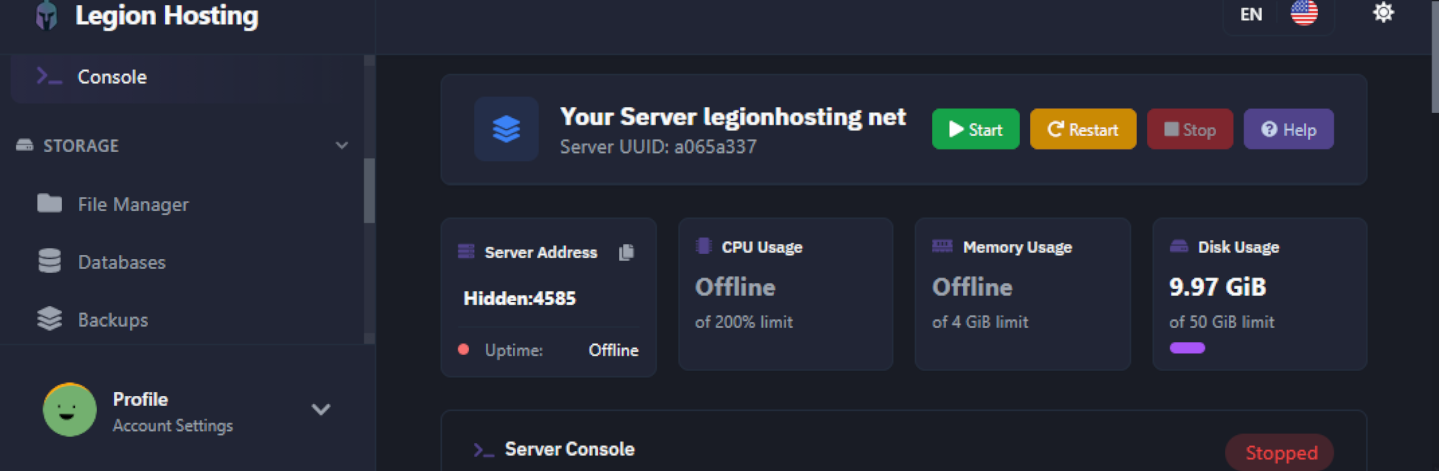
- From the server overview, look at the Console tab — this is shown by default when you open your server.
- Check the status indicator in the top-right of the console panel. It will show Offline.
- Click the Start button (green play icon).
- Watch the console output. The server will download any required files on the first start — this can take 2 to 10 minutes depending on the game.
- When the server is ready, the status changes to Running and you will see a ready message in the console.
Step 3: Find Your Connection Details
Your server's IP address and port are on the GPanel overview page.
- Click the Overview tab (or look at the top of the console page).
- Note the IP Address and Port — you will share these with friends so they can connect.
Step 4: Basic Configuration
Most servers let you change common settings — like the server name, password, and player limit — directly inside GPanel without editing config files manually.
Using the Startup Tab
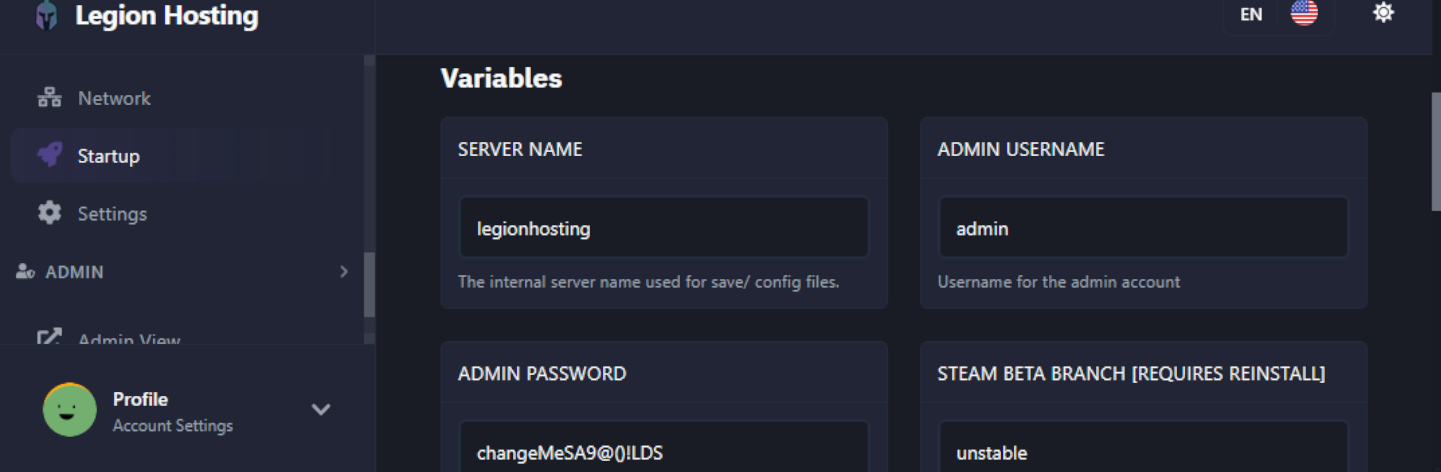
- Click the Startup tab in GPanel.
- You will see a list of variables that control your server's basic behaviour.
- Common variables are listed below. Edit the value and press Enter or click Save — changes take effect on the next server restart.
Common Settings
| Setting | What It Does | Example Value |
|---|---|---|
| Server Name | The name shown in the in-game server browser | My Legion Server |
| Server Password | Requires players to enter a password to join. Leave blank for a public server. | MySecret123 |
| Max Players | Maximum number of players allowed online at once | 16 |
| Admin Password | Password used to grant yourself admin/operator status in-game | AdminPass456 |
Step 5: Using the File Manager
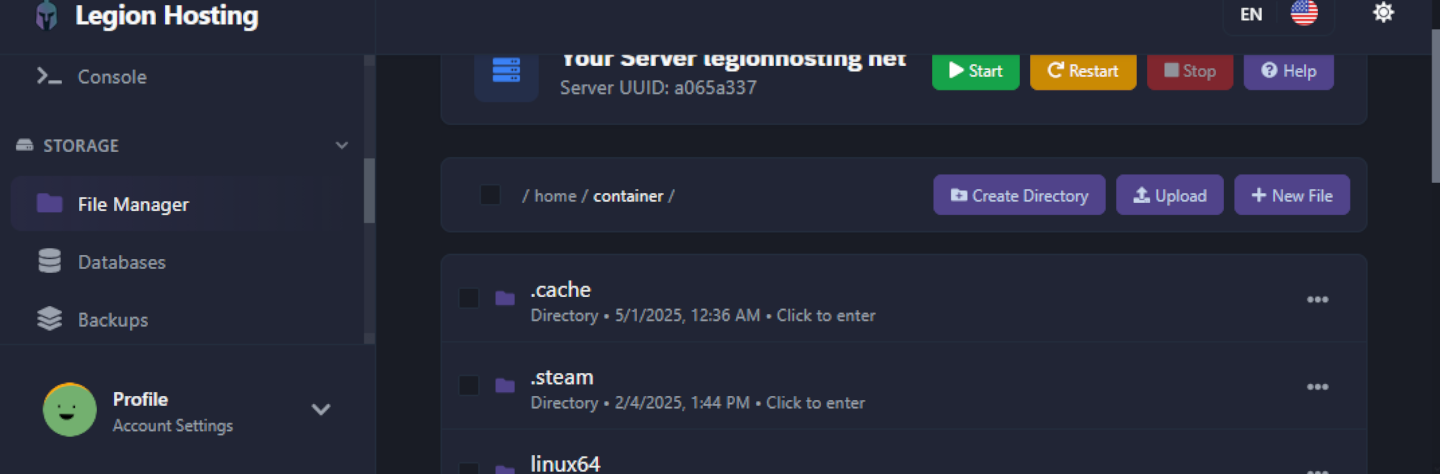
The File Manager gives you browser-based access to all your server files — useful for editing config files, uploading maps, or removing unwanted content.
- Click the Files tab in GPanel.
- You will see a directory listing of your server's root folder.
- To edit a file: click the file name. A built-in text editor opens in your browser. Make your changes and click Save Content.
- To upload a file: click Upload (top right), then drag and drop files or click to browse. Large files may take a moment.
- To create a folder: click New Directory, enter a name, and click Create.
- To delete a file or folder: check the box next to it and click Delete. Deletions are permanent.
Step 6: Verify Your Server Is Working
Before sharing your server details with others, confirm it is reachable.
- Make sure the server status shows Running in GPanel.
- Launch your game and navigate to the multiplayer / direct connect option.
- Enter your server's IP address and port from Step 3.
- If prompted, enter the server password you set in Step 4.
- You should connect successfully and see the world load.
Troubleshooting
If something is not working, work through the checklist below before opening a support ticket.
| Problem | What to Check |
|---|---|
| Cannot log in to GPanel | Use the Forgot Password link on the login page. Check your welcome email for the correct address. Check your spam folder if you do not receive the reset email. |
| Server won't start / stays Offline | Read the console output for error messages. The first install can take up to 10 minutes. If errors appear, copy them and open a support ticket. |
| Can't connect to the server | Confirm the server is Running. Double-check IP and port. Ensure you are using the game's direct-connect feature, not the server browser. See Finding Your Server IP & Port. |
| Settings changes not applying | Startup variable changes require a server restart. Use the Restart button after saving. |
| File upload fails or times out | For files larger than a few hundred MB, use SFTP instead of the browser file manager. |
| Console shows errors on startup | Copy the full error text and search this knowledge base. If not found, open a support ticket with the error included. |
Where to Get Help
Knowledge Base
Browse guides for common tasks, game-specific setup, and troubleshooting at legionhosting.net/kb/.
Support Ticket
Open a ticket through your client area for account or technical issues. Include your server name and any error messages.
Discord
Join the Legion Hosting Discord for community help and faster responses to quick questions.
