
Your server's IP address and port number are what you (and your players) use to connect. This guide shows you exactly where to find them in GPanel.
Prerequisites
- An active game server with Legion Hosting
- Your GPanel login credentials (check your welcome email if you have not logged in before)
Step 1 — Log In to GPanel
- Open your browser and go to https://gpanel.legionhosting.net.
- Enter your email address and password, then click Login.
- You will land on the server list. Click the name of the server you want to connect to.
Step 2 — Find the Address on the Console Page
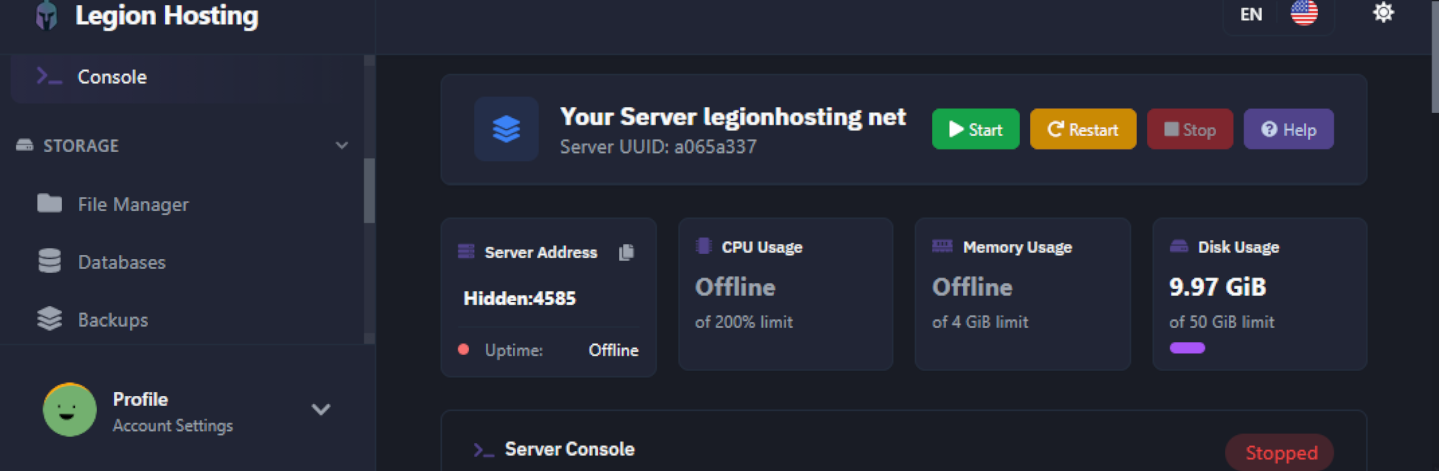
After clicking your server, GPanel opens the Console page by default. Your server address is displayed here without needing to navigate anywhere else.
- Look at the top of the Console page, directly below the server name.
- You will see the primary address in the format
IP:Port, for example192.0.2.10:25565. This is the main address your players use to connect. - Below the primary address, you may also see a query port listed. This is a secondary port used by some games for server-browser listing (see the note below on when to use it).
Step 3 — Understand the IP:Port Format
The address uses a colon to separate two parts:
| Part | Example | What It Means |
|---|---|---|
| IP Address | 192.0.2.10 |
The network location of your server. This is shared by all services on the same machine. |
| Port | 25565 |
The specific channel that belongs to your game server. Each server on the same machine has a unique port. |
Step 4 — Verify the Address in the Network Tab
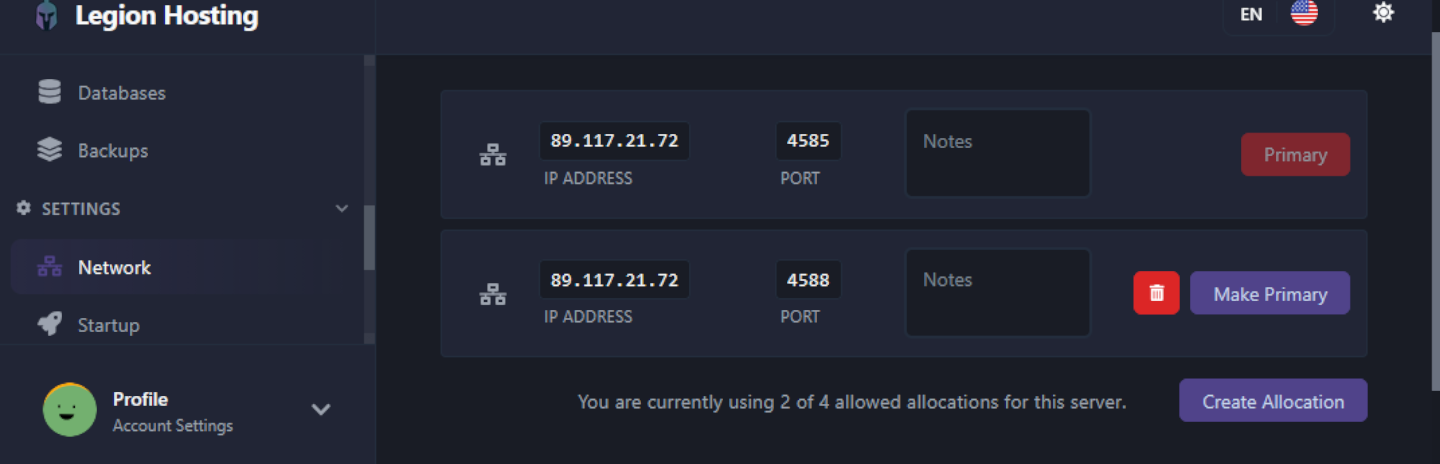
The Network tab lists every port allocated to your server. This is useful if your server uses more than one port (for example, a query port or RCON port).
- In the left sidebar of GPanel, click Network.
- A table lists each allocation. The row marked as Primary is the main connection address players use.
- Additional rows show secondary ports (such as query or voice ports) if your server type uses them.
Verification
Before sharing the address with players, confirm your server is actually running:
- Return to the Console tab.
- Check that the status indicator shows Running. If it shows Offline or Starting, wait until the server fully starts before attempting to connect.
- Try connecting yourself first using the
IP:Portaddress to confirm it is working.
Troubleshooting
The address is not visible on the Console page
Refresh the page. If the address still does not appear, check the Network tab as described in Step 4. If no ports are listed at all, contact Legion Hosting support — your server may not have been allocated a port yet.
Players cannot connect using the address
- Confirm players are using the full
IP:Portformat, including the colon and port number. - Confirm there are no extra spaces before or after the address.
- If you recently restarted the server, allow 1–2 minutes for it to finish loading before trying again.
The IP address changed
Legion Hosting assigns a fixed IP to your server. If the address appears different from what you expected, log in to GPanel and copy the address fresh from the Console page. Do not rely on addresses saved from older emails or screenshots.
