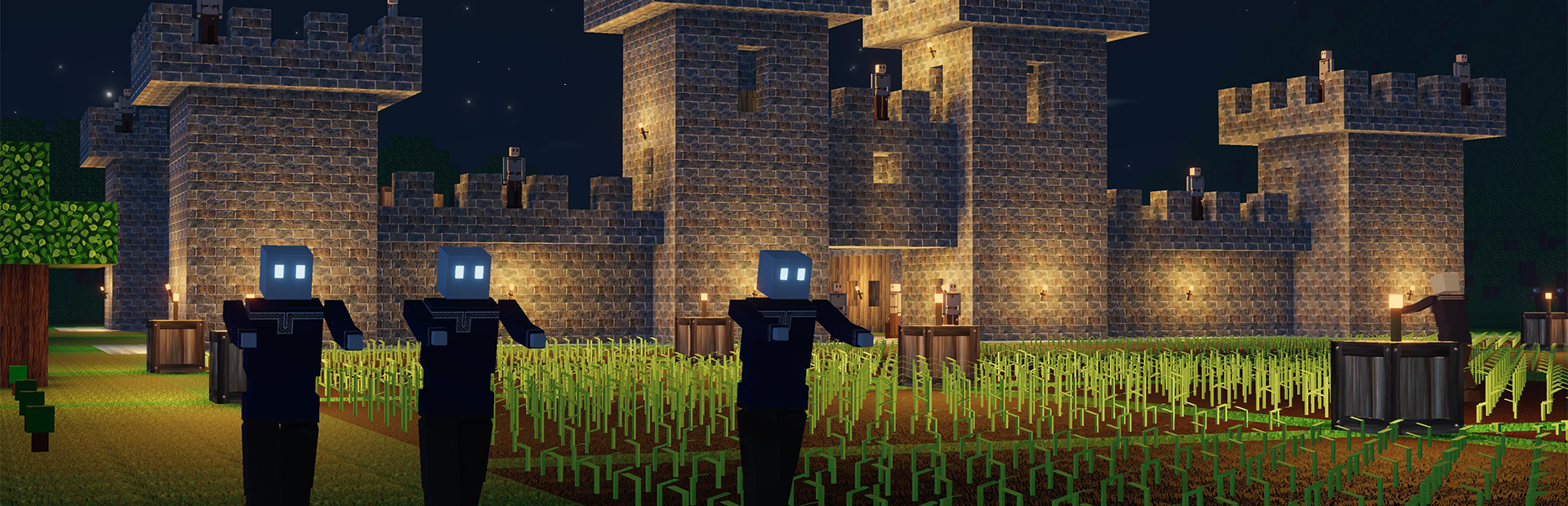
This guide covers admin setup, console commands, mod support, player management, server wipes, and troubleshooting for your CryoFall dedicated server. CryoFall is a sci-fi colony survival game on a hostile alien planet featuring technology trees, farming, crafting, and PvP/PvE gameplay. For initial server setup, configuration, and connection instructions, see CryoFall Server Setup Guide.
1. Admin Setup
CryoFall uses a server operator model where admin privileges are granted through configuration files rather than in-game commands.
Adding Server Operators
To grant admin access to players on your server:
- Stop the server from GPanel.
- Open the operator list file in the
Data/directory via the Files tab or SFTP. - Add the player's CryoFall account name or ID to the operator list.
- Save the file and restart the server.
Server operators have access to admin tools including the ability to kick, ban, and manage the world from within the game.
2. Console Commands
CryoFall provides console commands accessible through the GPanel console and in-game for operators. Below are the key commands for server management.
| Command | Description |
|---|---|
/player.kick <name> |
Kicks a player from the server. |
/player.ban <name> |
Bans a player from the server permanently. |
/player.unban <name> |
Removes a player from the ban list. |
/player.list |
Lists all currently connected players. |
/world.save |
Triggers an immediate world save. |
/server.shutdown |
Initiates a graceful server shutdown with save. |
/admin.add <name> |
Grants operator (admin) status to a player. |
/admin.remove <name> |
Revokes operator status from a player. |
/admin.list |
Lists all current server operators. |
3. Mod Support (ModsConfig.xml)
CryoFall supports server-side mods that can modify gameplay, add content, or change server behavior.
Installing Mods
- Stop the server from GPanel.
- Download the desired mods from the CryoFall modding community or Steam Workshop.
- Upload the mod files to the server's
Mods/directory via SFTP. See How to Upload Files via SFTP for instructions. - Edit the
ModsConfig.xmlfile in theData/directory to register the mods. - Start the server. Check the console for confirmation that mods loaded successfully.
ModsConfig.xml Format
<ModsConfig>
  <Mods>
    <Mod>ModFolderName1</Mod>
    <Mod>ModFolderName2</Mod>
  </Mods>
</ModsConfig>
Each <Mod> entry corresponds to a folder name inside the Mods/ directory. The load order follows the order listed in the XML file.
Data/ directory before adding or updating mods.
4. Player Management
Kicking and Banning
- Use
/player.kick <name>to remove a disruptive player immediately. - Use
/player.ban <name>to permanently prevent a player from reconnecting. - Use
/player.unban <name>to reverse a ban. - The ban list persists across server restarts.
Password Protection
For private servers, enable password protection in ServerSettings.yml:
IsPasswordProtected: true
ServerPassword: "YourSecretPassword"
Only share the password with trusted players. Restart the server after changing password settings.
5. Server Wipe
PvP servers often benefit from periodic wipes to reset the economy and give all players a fresh start.
Performing a Full Wipe
- Stop the server from GPanel.
- Back up the
Data/directory via SFTP (in case you want to restore later). - Delete the world save files from the
Data/directory. Keep configuration files likeServerSettings.ymlandModsConfig.xmlif you want to preserve your settings. - Start the server. A new world will be generated with your existing configuration.
Scheduled Wipes
For recurring wipes, establish a schedule and communicate it to your players:
- Common schedules are weekly (competitive PvP) or bi-weekly (balanced).
- Announce wipe dates in your server description or through a community Discord.
- Perform wipes during low-activity hours to minimize disruption.
6. Troubleshooting
Server Crashes on Startup
- Check the GPanel console for error messages. Common causes include malformed YAML syntax (incorrect indentation, missing colons, or tab characters instead of spaces).
- If you recently added mods, try removing them from
ModsConfig.xmlto see if a mod is causing the crash. - Delete
ServerSettings.ymland restart to regenerate a fresh config with defaults. - If the crash persists, open a support ticket with your server IP and the full console output.
Players Cannot Connect
- Verify the server is running in GPanel and check the console for errors.
- Confirm the player is using the correct IP and port from the GPanel Network tab.
- Check that the server password is correct if password protection is enabled.
- Ensure both the server and client are running the same CryoFall version.
- If running mods, confirm the player has the required client-side mods installed.
Mod-Related Crashes
- Remove recently added mods one at a time to identify the problematic mod.
- Check mod compatibility with your current CryoFall version.
- Ensure the
ModsConfig.xmlfile has valid XML syntax with no typos in mod folder names. - Restore from a pre-mod backup if the world becomes corrupted.
Performance Issues
- Reduce
MaxPlayersif the server struggles with many concurrent players. - Large numbers of player structures and land claims can impact performance over time. Scheduled wipes help reset this.
- Check if any installed mods are known to cause performance issues.
- If performance remains poor, contact support about upgrading your server plan.
Related Articles
- CryoFall Server Setup Guide
- How to Find Your Server IP and Port
- How to Upload Files via SFTP
- Server Startup Guide
Need Help?
If you run into issues with your CryoFall server that are not covered here, open a support ticket and include your server IP, a description of the problem, and any relevant error messages from the GPanel console.
