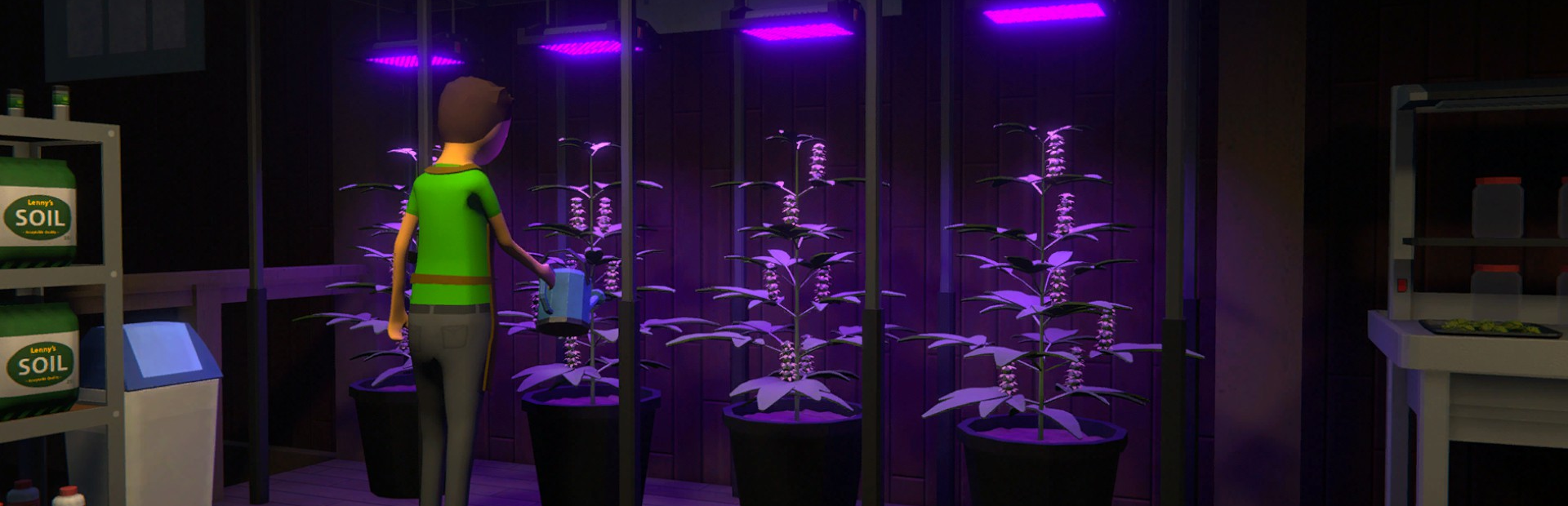
Tento průvodce pokrývá nastavení vašeho dedikovaného serveru Nova-Life: Amboise na Legion Hosting, konfiguraci spouštěcích proměnných, úpravu konfigurace server.json a připojení k vašemu serveru. Nova-Life: Amboise je multiplayerová simulace na hrdiny, kde si vytvoříte postavu a žijete druhý život. Pro administrátorské příkazy, správu serveru a řešení problémů se podívejte na Administrátorské příkazy Nova-Life: Amboise.
1. První spuštění
- Přihlaste se do GPanel a vyberte svůj server Nova-Life: Amboise.
- Přejděte na kartu Startup a nakonfigurujte požadované proměnné (viz sekce 2).
- Nastavte SERVER_NAME -- musí odpovídat názvu serveru vytvořenému ve hře nebo nastavenému během instalace.
- Vraťte se na kartu Console a klikněte na Start.
- Počkejte, až konzole zobrazí
Server launched in, což potvrdí, že server je připraven.
SERVER_NAME musí odpovídat názvu použitému při prvním vytvoření serveru (buď ve hře, nebo během instalace). Pokud se neshodují, budete muset server přeinstalovat a vytvořit nový.
2. Spouštěcí proměnné GPanel
| Proměnná | Výchozí | Popis |
|---|---|---|
SERVER_NAME | (prázdné, povinné) | Název serveru. Musí odpovídat názvu adresáře pod Servers/. Povolena jsou pouze písmena, čísla, pomlčky a podtržítka. |
SERVER_LIST_NAME | A Pterodactyl server | Název zobrazený ve veřejném seznamu serverů. |
SERVER_SLOTS | 25 | Maximální počet hráčů (1-50). |
AUTO_UPDATE | 1 | Automatická aktualizace serveru při spuštění. 1 = povoleno. |
3. Konfigurace serveru (server.json)
Hlavní konfigurační soubor se nachází na:
Servers/<SERVER_NAME>/Config/server.jsonPřed úpravou zastavte server. Jedná se o soubor JSON s následujícími nastaveními:
| Nastavení | Výchozí | Popis |
|---|---|---|
serverName | (ze spouštění) | Interní název serveru. |
serverListName | (ze spouštění) | Název zobrazený v prohlížeči serverů. |
serverSlot | 25 | Maximální počet slotů pro hráče. |
serverPort | (z GPanel) | Port serveru (nastaven automaticky). |
isPublicServer | false | Zda je server veřejně zobrazený v seznamu. |
useAdminPinAuth | false | Povolení ověření administrátorským PINem. |
isWhitelisted | false | Povolení režimu whitelistu. |
useWhitelistProtection | false | Vyžadování žádosti o whitelist. |
autoSaveIntervalSeconds | 1800 | Interval automatického ukládání v sekundách (výchozí 30 minut). |
disconnectClientsBeforeStop | true | Odpojení všech hráčů před vypnutím serveru. |
mapId | 0 | ID mapy k načtení. |
serverFramerate | 60 | Tick rate serveru ve snímcích za sekundu. |
hasShop | false | Povolení obchodu ve hře. |
Příklad server.json
{
  "serverName": "MyServer",
  "serverListName": "My Legion RP Server",
  "serverSlot": 25,
  "serverPort": 7777,
  "isPublicServer": true,
  "useAdminPinAuth": false,
  "isWhitelisted": false,
  "useWhitelistProtection": false,
  "autoSaveIntervalSeconds": 1800,
  "disconnectClientsBeforeStop": true,
  "mapId": 0,
  "serverFramerate": 60,
  "hasShop": false
}
4. Struktura souborů
Servers/
  <SERVER_NAME>/
    Config/
      server.json    -- Main server configuration
    Saves/           -- World save data
    Logs/            -- Server logs
5. Jak se připojit
- Spusťte Nova-Life: Amboise na Steam.
- V hlavním menu vyberte Multiplayer.
- Pokud je server veřejný, najděte ho v prohlížeči serverů podle názvu.
- Vyberte svůj server a klikněte na Join.
Související články
- Administrátorské příkazy Nova-Life: Amboise
- Jak najít IP adresu a port vašeho serveru
- Jak nahrávat soubory přes SFTP
Potřebujete pomoc?
Pokud narazíte na problémy s vaším serverem Nova-Life: Amboise, které zde nejsou popsány, otevřete tiket podpory a uveďte IP adresu vašeho serveru, popis problému a případné relevantní chybové zprávy z konzole GPanel.

