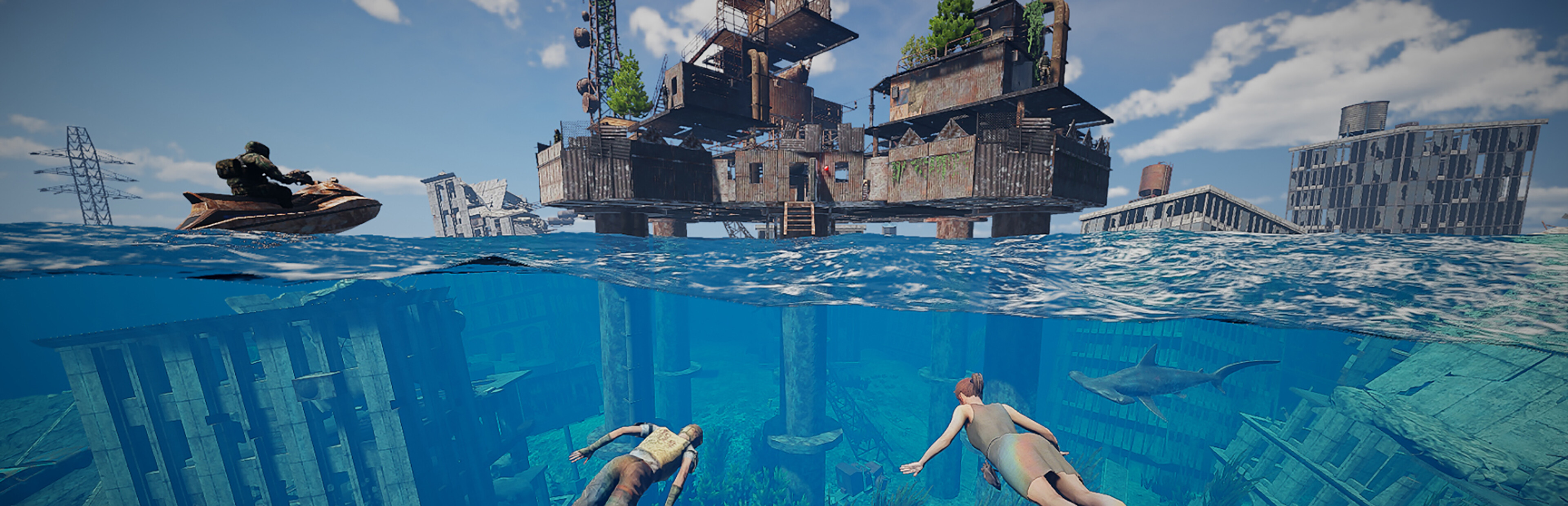
Modiverse je sandboxová hra s možností vytvářet a hrát mody jako TTT, Deathrun, FortWars, RP a další. Nabízí sandboxové nástroje pro stavbu komplexních světů s objekty, světly, tryskami a koly. Tento průvodce pokrývá nastavení vašeho serveru Modiverse na Legion Hosting.
První spuštění v GPanel
- Přihlaste se do GPanel a vyberte svůj server Modiverse.
- Přejděte na záložku Console. Server automaticky stáhne herní soubory přes SteamCMD (App ID 1549820).
- Počkejte na dokončení stahování a instalace. To zahrnuje vytvoření adresáře ServerData a stažení výchozí konfigurace.
- Po instalaci se server spustí. Hledejte v konzoli výstup
listening on port. - Pokud se server nespustí sám, klikněte na Start.
Startovní proměnné
Přejděte na záložku Startup v GPanel pro zobrazení a úpravu těchto nastavení:
| Proměnná | Popis | Výchozí |
|---|---|---|
HOSTNAME |
Název serveru zobrazený v prohlížeči serverů | Pterodactyl Server |
QUERY_PORT |
Query port pro zobrazení v prohlížeči serverů | 27015 |
MAX_PLAYERS |
Maximální počet hráčských slotů (2-128) | 128 |
AUTO_UPDATE |
Automatická aktualizace při spuštění (1 = zapnuto, 0 = vypnuto) | 1 |
Konfigurace serveru
Modiverse používá konfigurační soubor ve formátu JSON umístěný na:
KJMod/Binaries/Linux/ServerData/ServerConfiguration.jsonUpravte jej pomocí File Manager v GPanel nebo přes SFTP.
Příklad ServerConfiguration.json
{
    "version": 1,
    "pin": "0000",
    "motdURL": "http://test.com/motd.html",
    "motdDelay": 5,
    "rconPassword": "cHangeRC0nPasswOrD",
    "mapCycle": [
        {
            "gameMode": "2285067974",
            "comment": "Deathrun, Deathrun Example Map",
            "map": "2286680373",
            "assets": ["2229481041"],
            "duration": 1800
        }
    ]
}| Nastavení | Popis |
|---|---|
pin |
PIN serveru (heslo), které musí hráči zadat pro připojení. Nastavte na "0000" nebo ponechte prázdné pro žádný PIN. |
motdURL |
URL vlastní HTML stránky se zprávou dne |
motdDelay |
Zpoždění v sekundách před zobrazením MOTD |
rconPassword |
Heslo pro vzdálený přístup ke konzoli. Změňte ho z výchozího! |
mapCycle |
Pole map a herních režimů pro rotaci |
rconPassword je veřejně známé. Okamžitě ho změňte, aby se zabránilo neoprávněnému přístupu k serveru.
Konfigurace rotace map
Každá položka v poli mapCycle definuje herní režim, mapu, požadované assety a dobu trvání:
gameMode-- Steam Workshop ID herního režimumap-- Steam Workshop ID mapyassets-- Pole dalších Workshop ID assetů potřebných pro hruduration-- Doba trvání kola v sekundáchcomment-- Popis (pouze pro vaši orientaci)
ServerConfiguration.json restartujte server z GPanel, aby se změny projevily.
Jak se připojit
- Spusťte Modiverse ze Steam.
- Otevřete prohlížeč serverů z hlavního menu.
- Vyhledejte svůj server podle názvu.
- Vyberte svůj server a klikněte na Join.
- Zadejte PIN serveru, pokud je nastaven.
Obsah z Workshop
Modiverse se silně opírá o obsah ze Steam Workshop pro herní režimy, mapy a assety. Server automaticky stahuje položky z Workshop odkazované v konfiguraci mapCycle. Pro přidání nových herních režimů:
- Najděte Workshop ID herního režimu a mapy na Modiverse Steam Workshop.
- Přidejte nové položky do pole
mapCyclevServerConfiguration.json. - Zahrňte všechna potřebná Workshop ID assetů do pole
assets. - Restartujte server pro stažení a načtení nového obsahu.
Související články
- Modiverse administrace a příkazy
- Jak najít IP adresu a port vašeho serveru
- Jak nahrát soubory přes SFTP

