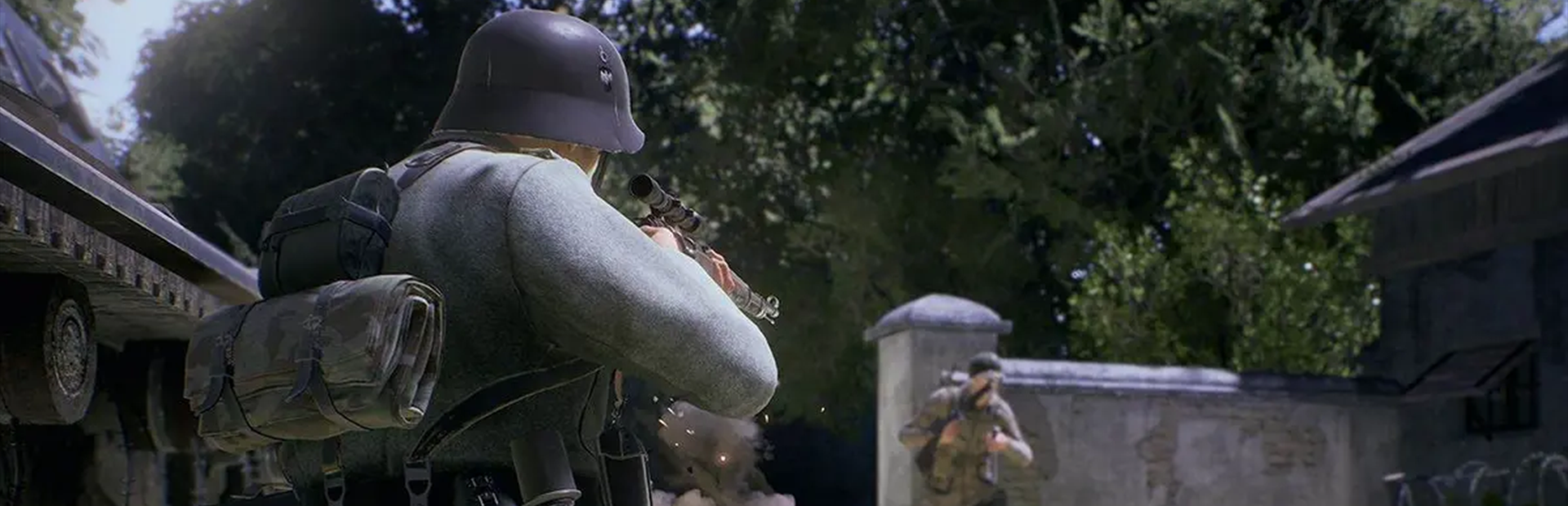
يغطي هذا الدليل أوامر الإدارة وإدارة الخادم لخادم BATTALION: Legacy المخصص على Legion Hosting. تعلّم كيفية استخدام صلاحيات الإدارة، وإدارة اللاعبين، وتهيئة إعدادات المباريات. للإعداد الأولي، راجع دليل إعداد خادم BATTALION: Legacy.
صلاحيات الإدارة
يستخدم BATTALION: Legacy نظام إدارة قائم على كلمة المرور. يتم تعيين كلمة مرور الإدارة عبر متغير التشغيل ADMIN_PW في GPanel (الافتراضي: changeme).
تسجيل الدخول كمسؤول داخل اللعبة
- افتح وحدة التحكم داخل اللعبة (اضغط مفتاح
~التلدة) - اكتب:
AdminLogin <password> - ستتلقى رسالة تأكيد في حال نجاح العملية
# Log in as admin
AdminLogin changemechangeme فوراً. عيّن كلمة مرور قوية في متغير التشغيل ADMIN_PW في GPanel.
أوامر الإدارة الشائعة
يتم إدخال أوامر الإدارة في وحدة التحكم داخل اللعبة (~) بعد تسجيل الدخول، أو عبر وحدة تحكم الخادم في GPanel.
إدارة اللاعبين
| الأمر | الوصف |
|---|---|
AdminKick <PlayerName> |
طرد لاعب من الخادم |
AdminBan <PlayerName> |
حظر لاعب من الخادم |
التحكم بالمباراة
| الأمر | الوصف |
|---|---|
AdminRestartMap |
إعادة تشغيل الخريطة الحالية |
AdminChangeMap <MapName> |
التبديل إلى خريطة مختلفة |
AdminPauseMatch |
إيقاف المباراة الحالية مؤقتاً |
AdminEndRound |
إنهاء الجولة الحالية إجبارياً |
AdminSlomo <value> |
تغيير سرعة اللعبة (1.0 = عادي) |
أوضاع اللعب
يدعم BATTALION: Legacy عدة أوضاع لعب يمكن تهيئتها عبر أمر التشغيل:
| الوضع | الوصف |
|---|---|
| Wartide | وضع تنافسي 5 ضد 5 مع نظام اقتصادي قائم على البطاقات (افتراضي) |
| Search and Destroy | وضع الأهداف الكلاسيكي لزرع/إبطال القنبلة |
| Capture the Flag | وضع الاستيلاء على العلم بين الفرق |
| Domination | وضع السيطرة على نقاط التحكم |
| Team Deathmatch | وضع القتال الكلاسيكي فريق ضد فريق |
| Free For All | كل لاعب لنفسه |
تهيئة الخادم
يمكن تهيئة إعدادات الخادم الإضافية من خلال ملفات تكوين Unreal Engine في مجلد الخادم. يمكنك الوصول إليها عبر مدير الملفات في GPanel:
Battalion/Saved/Config/LinuxServer/
  Game.ini          <-- Game rules
  Engine.ini        <-- Engine settings
  GameUserSettings.ini  <-- Server preferences
استكشاف الأخطاء وإصلاحها
الخادم لا يظهر في متصفح الخوادم
- تأكد من أن الخادم قد بدأ بالكامل (ابحث عن
OnCreateSessionCompleteفي وحدة التحكم) - تحقق من تخصيص كلٍّ من منفذ اللعبة ومنفذ الاستعلام في GPanel
- انتظر 2-3 دقائق حتى يتم نشر القائمة على Steam
- جرّب الاتصال عبر IP المباشر
أوامر الإدارة لا تعمل
- تأكد من تسجيل الدخول باستخدام
AdminLogin <password>أولاً - تحقق من أن كلمة المرور تتطابق مع متغير التشغيل
ADMIN_PW(حساس لحالة الأحرف) - الأوامر المُدخلة عبر وحدة تحكم GPanel لا تتطلب تسجيل الدخول
مقالات ذات صلة
هل تحتاج مساعدة؟
إذا كنت بحاجة إلى مساعدة إضافية بخصوص خادم BATTALION: Legacy الخاص بك، فإن فريق الدعم لدينا جاهز للمساعدة. أرسل تذكرة دعم وسنرد عليك في أقرب وقت ممكن.

