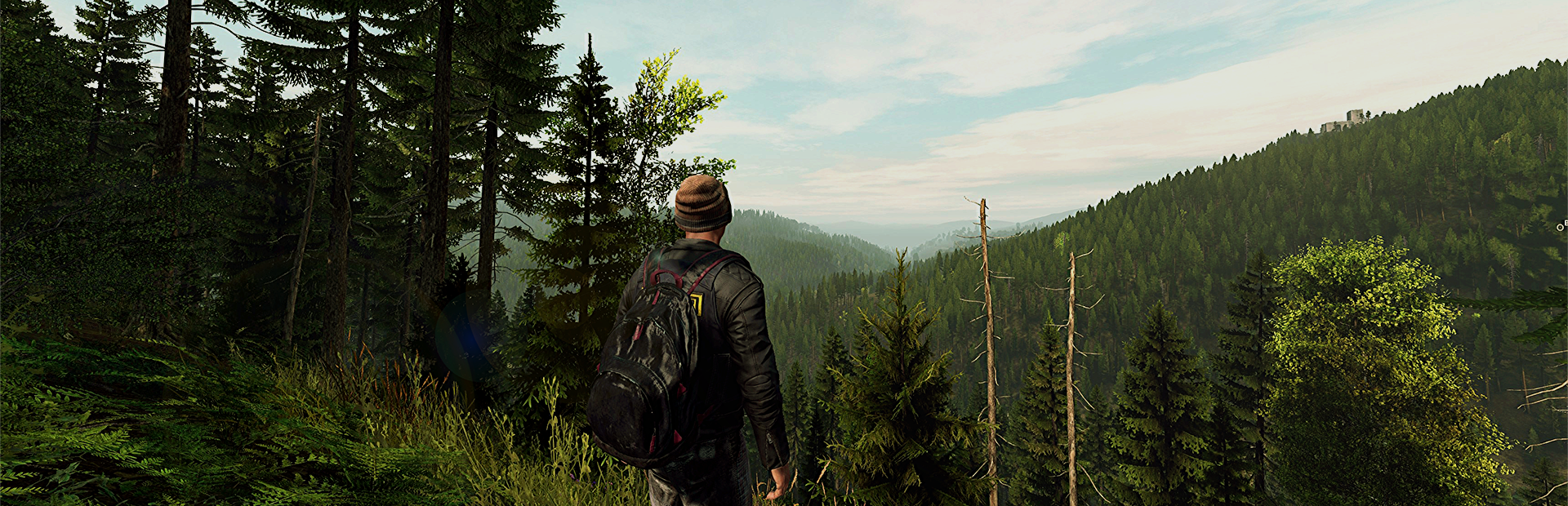
This guide covers server administration, console commands, cvar management, and troubleshooting for your Nazi Zombies: Portable (NZ:P) dedicated server. NZ:P runs on the FTEQW engine and uses Quake-style console commands for server management. For initial setup, configuration, and connection instructions, see NZ:P Server Setup Guide.
1. Accessing the Console
You can manage your NZ:P server in two ways:
- GPanel Console: Go to the Console tab in GPanel and type commands directly.
- In-Game Console: Press
`or~to open the console while connected to the server.
2. Essential Server Commands
Map Management
| Command | Description |
|---|---|
map <mapname> | Change to a different map (e.g. map ndu). |
listmaps | List all available maps on the server. |
changelevel <mapname> | Change map, keeping existing connections. |
Server Control
| Command | Description |
|---|---|
status | Show server status including connected players and their IDs. |
kick <player_id> | Kick a player by their ID (get IDs from status). |
quit | Shut down the server gracefully. |
restart | Restart the current map. |
3. Server CVars
CVars (console variables) control server behavior. Set them in the GPanel console or via the GAME_ARGS startup variable using the format +cvar value.
| CVar | Default | Description |
|---|---|---|
sv_port | (assigned) | Server port (set automatically from GPanel). |
sv_port_tcp | (assigned) | TCP port for the server. |
sv_maxclients | 4 | Maximum number of players. |
sv_public | 1 | Whether the server appears in the public server list. |
sv_mintic | 0.045 | Minimum tick interval (set via TICKRATE startup variable). |
com_protocolname | NZP-REBOOT | Protocol name (set via PROTOCOL startup variable). |
hostname | (empty) | Server name displayed in server browser. Set via GAME_ARGS: +hostname "My Server". |
Setting CVars at Startup
Add cvars to the GAME_ARGS startup variable in GPanel:
+hostname "My NZ:P Server" +sv_maxclients 8 +sv_public 14. Custom Content
NZ:P supports custom maps. To add custom content:
- Stop the server in GPanel.
- Upload custom map files to the
nzp/directory via SFTP (see How to Upload Files via SFTP). - Start the server and change to the new map with
map <mapname>.
5. Troubleshooting
Server Not Starting
- Check the GPanel console for error messages.
- Verify the MAP variable is set to a valid map name.
- Ensure TICKRATE is a valid number (e.g.
0.045).
Players Cannot Connect
- Verify the server is running in GPanel.
- Ensure clients are using the correct protocol --
NZP-REBOOTfor native,NZP-REBOOT-WEBfor web. - Web clients must use HTTP (not HTTPS) and the
ws://prefix. - Check the correct IP and port from the Network tab.
Physics Bugs / Zombies Getting Stuck
- Try lowering the TICKRATE value (e.g. from
0.045to0.033) for smoother physics simulation. - Be aware that lower tick intervals increase bandwidth usage.
Related Articles
Need Help?
If you run into issues with your NZ:P server that are not covered here, open a support ticket and include your server IP, a description of the problem, and any relevant error messages from the GPanel console.
