ARK: Survival Ascended uses separate game and query ports, requires specific server browser filters to find unofficial servers, and supports both crossplay and direct-connect methods. This guide covers every way to join your Legion Hosting ASA server.
Prerequisites
- An active ARK: Survival Ascended server with Legion Hosting
- Your server's IP address and game port — find these in GPanel under Console or the Network tab
- ARK: Survival Ascended installed on your PC or console (Epic or Steam)
- BattleEye must be enabled or disabled consistently on both the server and client — mismatched settings will prevent joining
Method 1 — Finding Your Server in the Browser
The in-game server browser will show your server once it is running, but you must apply the correct filters or it will not appear in the default view.
- Launch ARK: Survival Ascended and reach the main menu.
- Click Join Game.
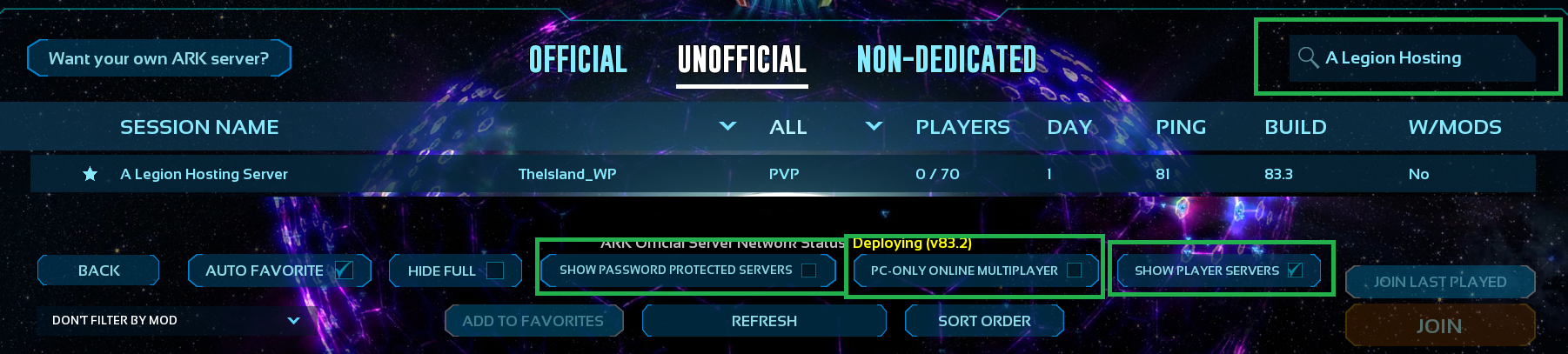
- At the top of the server list, open the Server Type (or Session Filter) dropdown and select Unofficial, then select Player Servers (or Unofficial Player Servers on some builds).
- If you see a checkbox labelled Show PC Only, Show Console Only, or similar platform-lock options, uncheck it. Leaving this checked hides crossplay servers and is the most common reason a server does not appear.
- In the search box type part of your server's name as set in GPanel (check your server's startup parameters for the
SessionNamevalue). - Click Search or press Enter and wait for results to populate.
- Locate your server in the list, click it, then click Join.
Method 2 — Direct Connect via Console Command
Direct connect bypasses the server browser entirely. This is the most reliable method and works even when the server browser is slow or the server has not yet propagated to the listing.
- Launch ARK: Survival Ascended and reach the main menu.
- Press the tilde key (~) or ` to open the in-game console. If the console does not open, make sure your keyboard layout is supported — some non-US layouts use a different key.
-
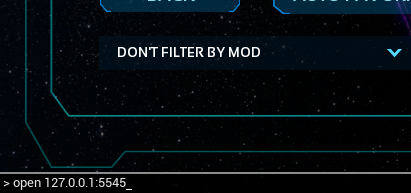
Type the following command, replacing
YOUR_IPandGAME_PORTwith the values from GPanel:
Example:open YOUR_IP:GAME_PORTopen 203.0.113.45:7777 - Press Enter. The game will attempt to connect immediately.
- If the server has a password set, a prompt will appear asking for it before you are allowed in.
open command requires the port players actually connect on (default 7777). Using the query port (e.g. 7778) will result in a failed connection.
Understanding the Query Port
The query port is separate from the game port and is only used for server-browser listing — it is not entered when using open to direct connect.
open IP:port) and gameplay are unaffected. If you do not need a browser listing, you can safely ignore the query port.
| Port | Default | Purpose | Where to use it |
|---|---|---|---|
| Game Port | 7777 |
Players connect through this port to actually join the server | open IP:7777 in console; server browser join |
| Query Port | 7778 |
Server browser polling — Steam/Epic query this to list server info | Some third-party tools (ArkServers.io, battlemetrics) ask for this port |
Both ports are visible in GPanel under Network. If your server was assigned non-default ports, use the values shown there — do not assume 7777/7778.
Crossplay and BattleEye Settings
Crossplay (PC and Console players together)
ASA supports crossplay between Steam, Epic Games, and consoles when the server has crossplay enabled.
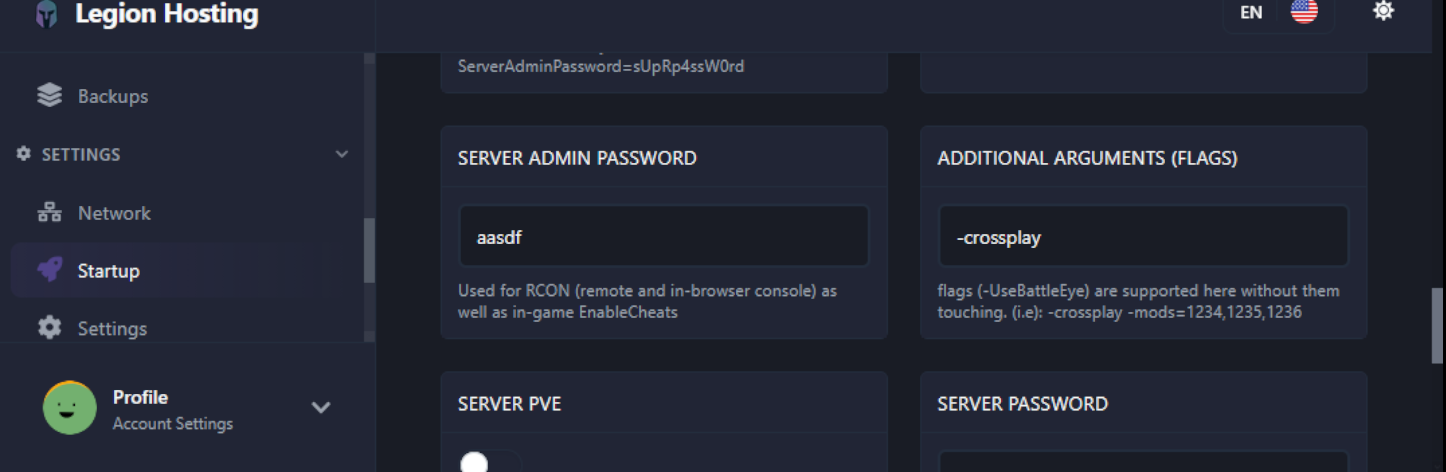
- In GPanel, go to your server's Startup tab.
- Locate the Crossplay toggle or the
-crossplaystartup flag and ensure it is enabled. - In the server browser, crossplay servers appear in the combined listing — make sure the Show PC/Console Only filter is unchecked (as covered in Method 1, Step 4) so these servers are visible to all players.
BattleEye Anti-Cheat
BattleEye must match between the server and the client. A mismatch is one of the most common reasons a player can find a server in the browser but cannot actually join.
- Server side: Check the Startup tab in GPanel for a BattleEye toggle. Note whether it is on or off.
- Client side (Steam): In your Steam library, right-click ARK: Survival Ascended, choose Properties, then Launch Options. Add
-NoBattlEyeto disable it, or remove that flag to enable it. - Client side (Epic): The Epic launcher shows a prompt at launch asking whether to play with or without BattleEye.
- Both the server and every connecting player must use the same BattleEye setting.
Verification
- In GPanel, confirm the server status shows Running on the Console tab before attempting to join. A server in the Starting state is not ready to accept connections.
- Try the direct-connect method (
open IP:port) first — this is faster than waiting for the browser to update and confirms the server is actually reachable. - Once inside, open the in-game pause menu and verify the server name matches your expected server. This rules out accidentally joining a different server with a similar name.
- Check the player list or admin log to confirm your connection was recorded.
Troubleshooting
Server does not appear in the browser
- Confirm the server is fully started in GPanel (status: Running, not Starting).
- Set the filter to Unofficial > Player Servers and uncheck any PC-only or Console-only checkbox.
- Clear the name search field and scroll manually — the
SessionNamein GPanel's Startup tab must exactly match what you are searching for. - The browser can take 5–10 minutes to pick up a newly started server. Try a direct connect in the meantime.
- The server browser requires a query port. Check GPanel's Network tab — if only the game port is allocated and no query port is listed, your server will not appear in the browser. Use direct connect instead, or contact support to request a query port allocation.
Direct connect fails immediately
- Double-check you are using the game port, not the query port.
- Make sure there are no spaces in the
open IP:portcommand other than the space afteropen. - Confirm the server is running — a stopped or crashed server will reject connections silently.
- Try pinging the IP from a command prompt (
ping YOUR_IP) to confirm basic network reachability.
Connection times out or drops during loading
- Check the GPanel console output for errors. Common causes are the server running out of memory mid-load or a mod failing to initialise.
- If mods are installed, confirm all players have the same mod list and load order. Mismatched mods will cause a timeout during the initial connection handshake.
- Reduce the number of active mods temporarily to isolate whether a specific mod is causing the disconnection.
Password prompt does not appear / wrong password error
- In GPanel's Startup tab, locate the
ServerPasswordor Server Password field and confirm the password is set correctly. - After changing the password in GPanel, restart the server fully — a running server does not apply startup changes until it is restarted.
- Passwords are case-sensitive. Confirm Caps Lock is off when entering the password in-game.
BattleEye mismatch error on join
The error message usually reads something like "You are running with BattleEye disabled" or "Server requires BattleEye". To fix this:
- Note the BattleEye setting on the server (GPanel Startup tab).
- Match it on your client using the Steam launch option (
-NoBattlEyeto disable) or the Epic launcher prompt. - Restart ASA and reconnect.
